
Channels
There is an option on the Elevate app to create public and private channels. Channels are chats where you can invite other members.
Channels can help reach members with important updates by sending announcements, broadcasting messages to multiple people at once, and also ensuring that the updates reach every member on the channel. Channels can also be used as a platform for discussing topics and the tagging feature makes sure that the particular person can identify the message targeted to them.
How to create a channel
Open Chat tab
Click on + icon
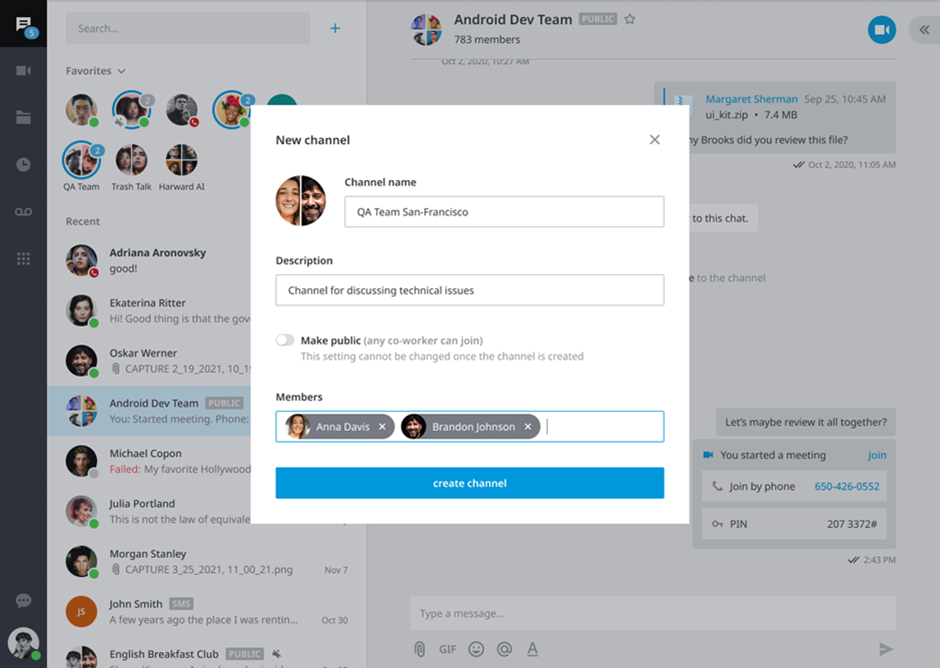
Choose Channel. You’ll see the new pop-up appear:
Desktop:
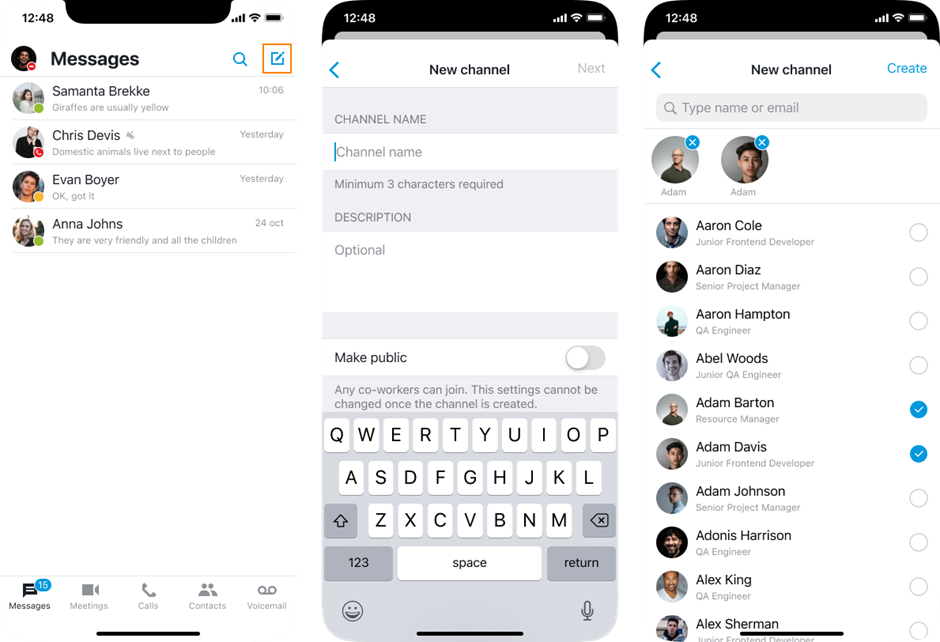
iOS:
Android:
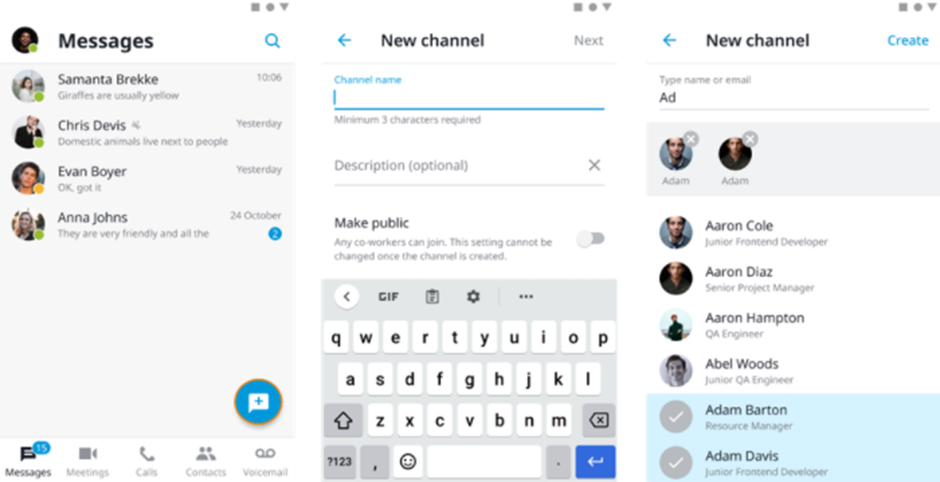
Channel name: Mandatory for each channel. Any channel member may change this name later. Name is visible for other users and everyone could search for Channel name.
Note: This field must be 3 – 200 symbols long.Channel description: Optional for each channel. Any channel member may change it later. Description is visible for other users and everyone could search for Channel description.
Note: This field could be up to 1000 symbols long.Members: Optional for each channel. Any channel member may add new members later.
Note: Max channel size is 5000 members.Privacy settings: Channel creator must choose if channel is public or private. This could not be changed later. Public channels could be found and joined by any user on account. Private channels are searchable for its members only
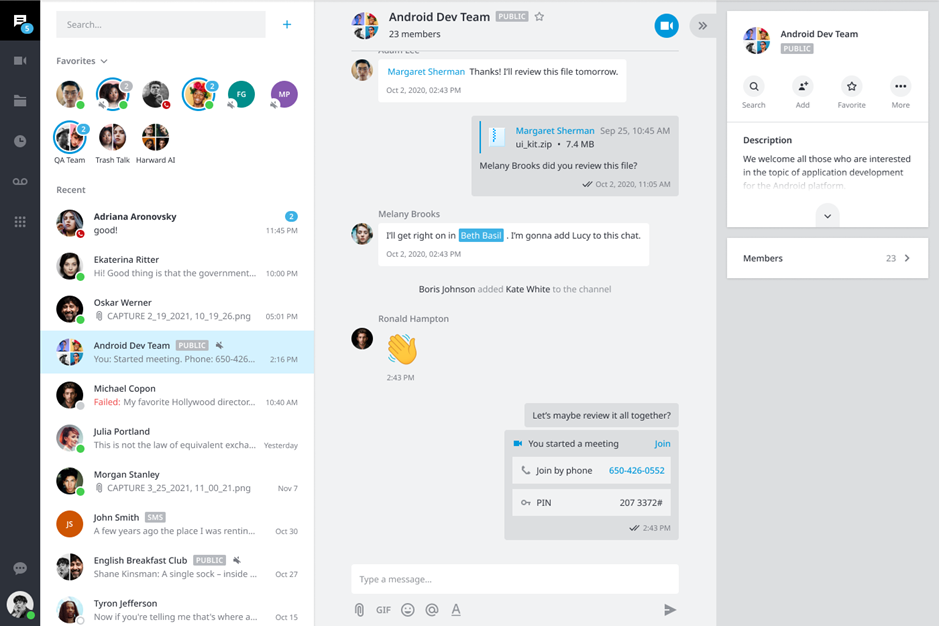
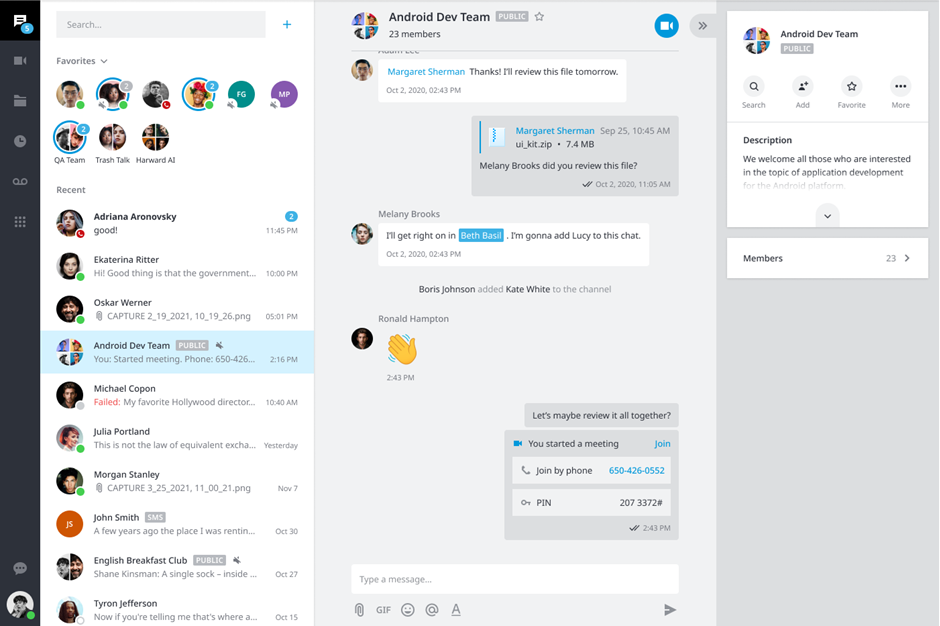
Public Channels
Public channel is available for every user in your company. You may search for public channels and join or leave them. Other users may join your public channels.
Private Channels
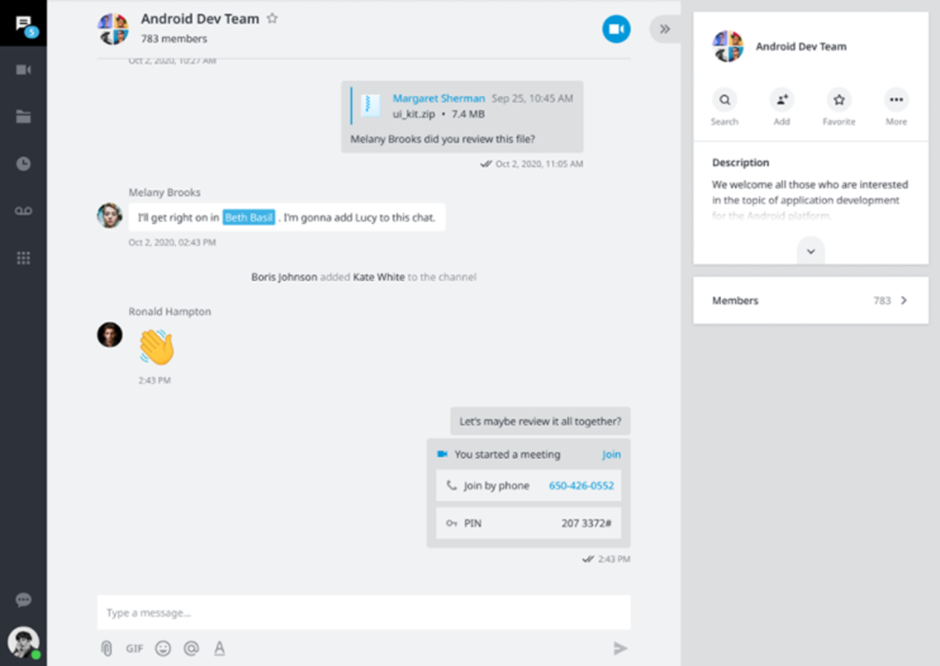
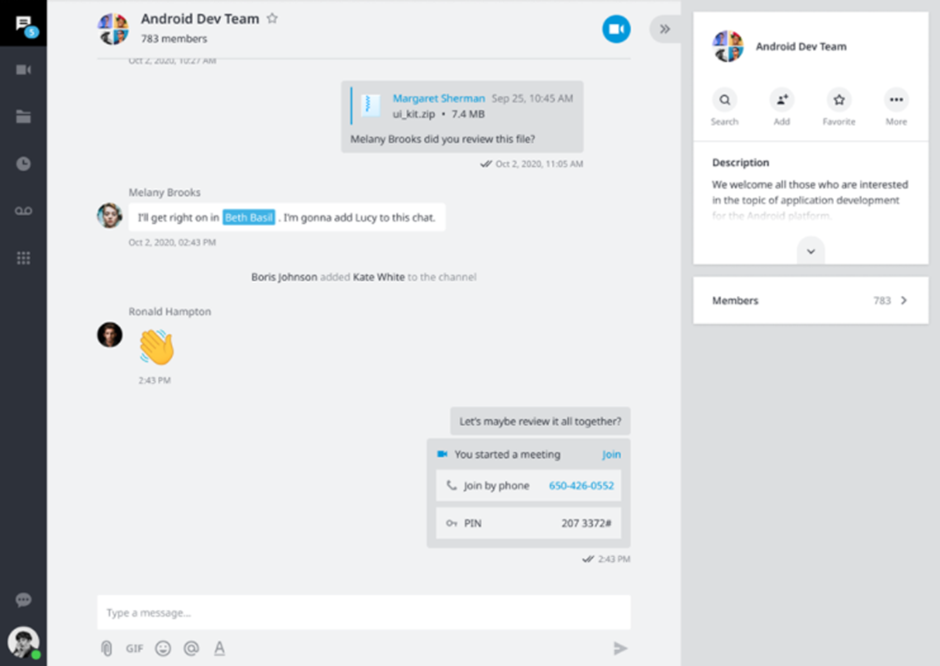
Private channel available for its members only. Users may only be invited.
Search for channels
Go to Chat tab
Click on Search bar
Type at least 2 symbols
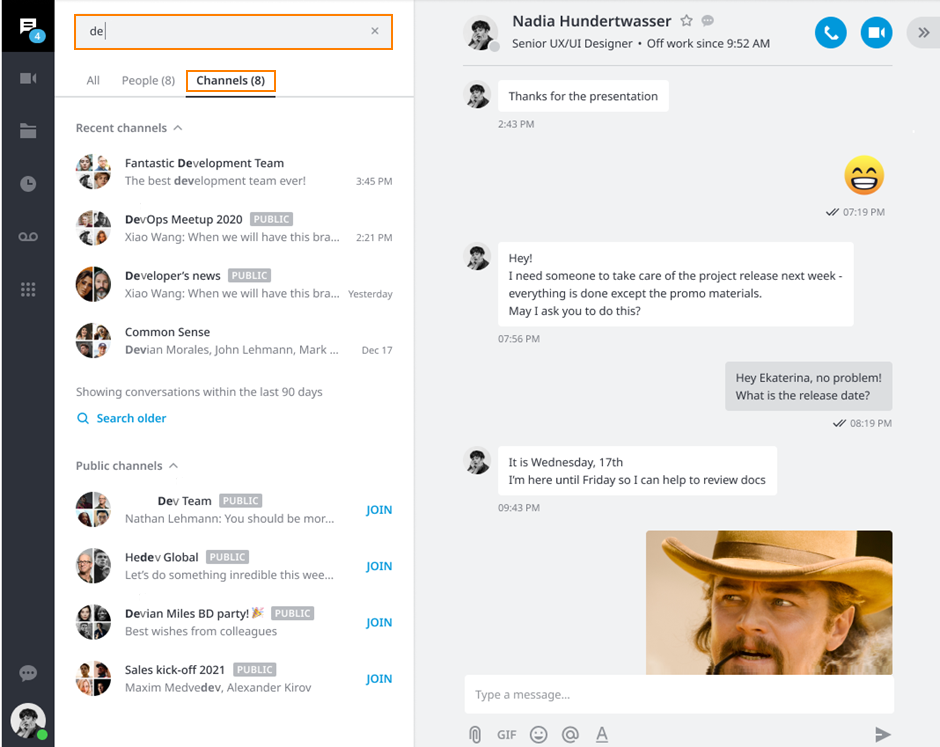
Results are grouped
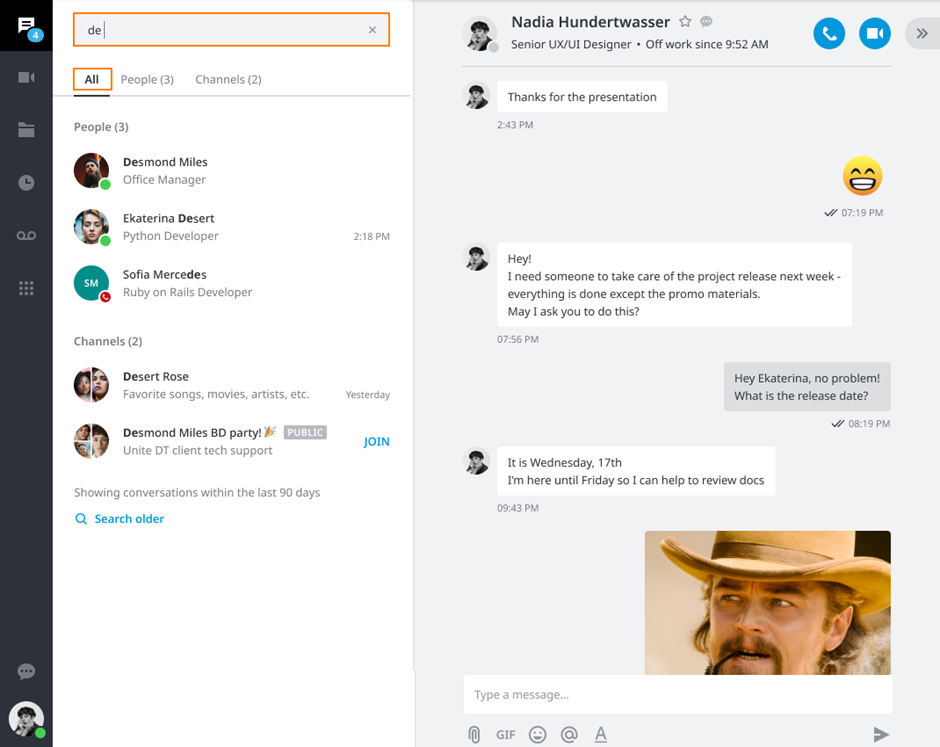
People: shows all your contacts
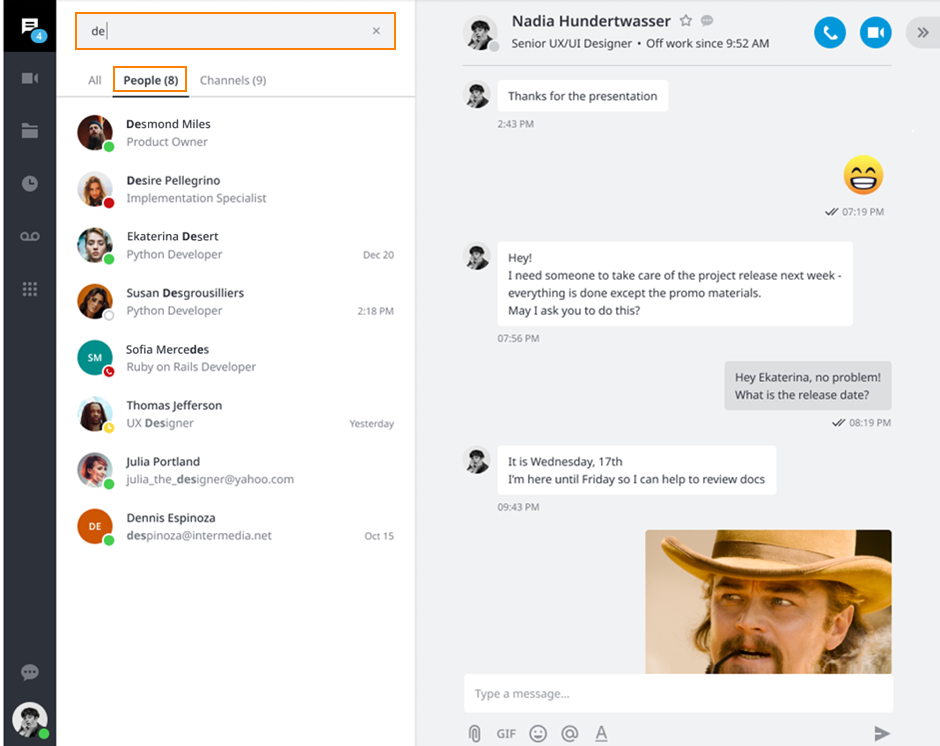
Channels:
Channels where you are a member at
Public channels available to join
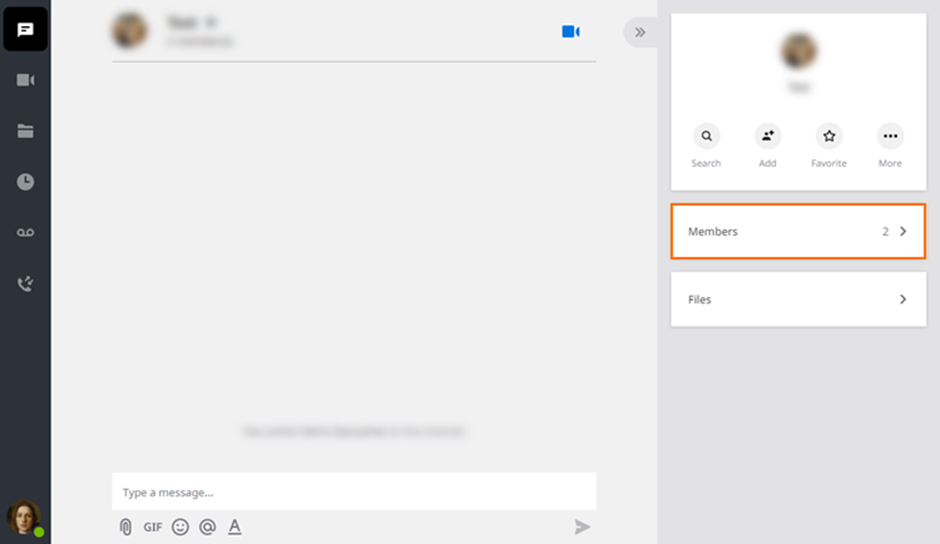
Remove a user from a private channel
Open up the channel, access the side panel and click Members
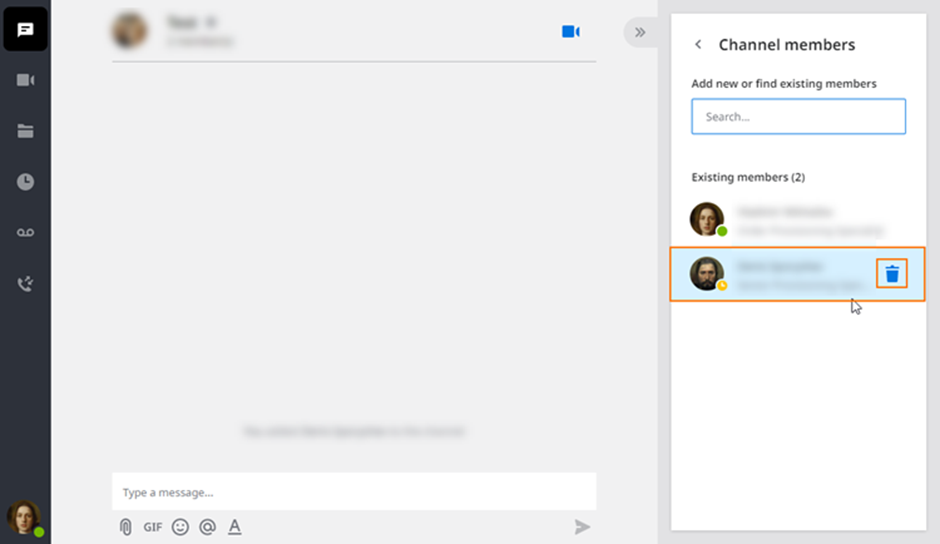
Hover over the user you wish to remove and click on the trash bin icon
Delete a channel
In order to delete a channel (private or public), all members should leave it. After that, the channel gets automatically deleted.
Note: public channels without members (after all members have left it) can still be found through Search, it is expected behaviour.