
Click-To-Call
Elevate desktop application supports handling for TEL: and CALLTO: links so it could be registered as calling application with your operating system. This allows to automatically dial the phone numbers in Elevate Desktop app by one of the following actions:
Click-to-call numbers from websites
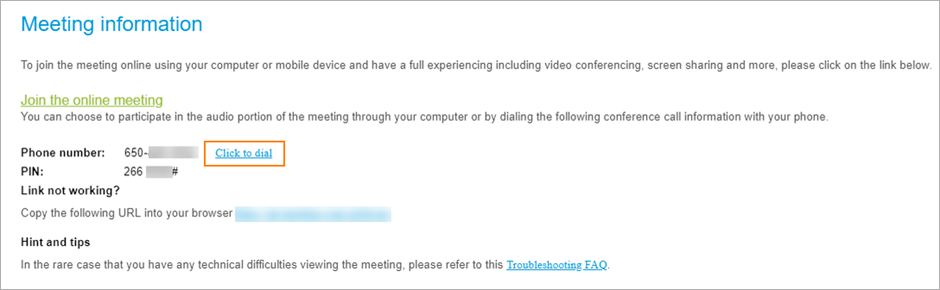
'Click to dial' from an Online Meeting invite
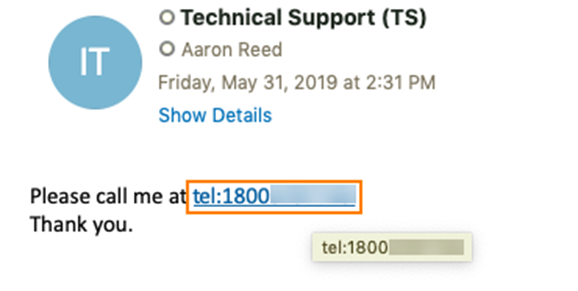
Click-to-call phone number from email
To dial number in Elevate app proceed with one of the options below:
from a website click the number

click on Click to dial in Online Meeting invitation
Click on a phone number in an email body.
Note: this will work if phone number has been converted by sender into tel- or callto-link.
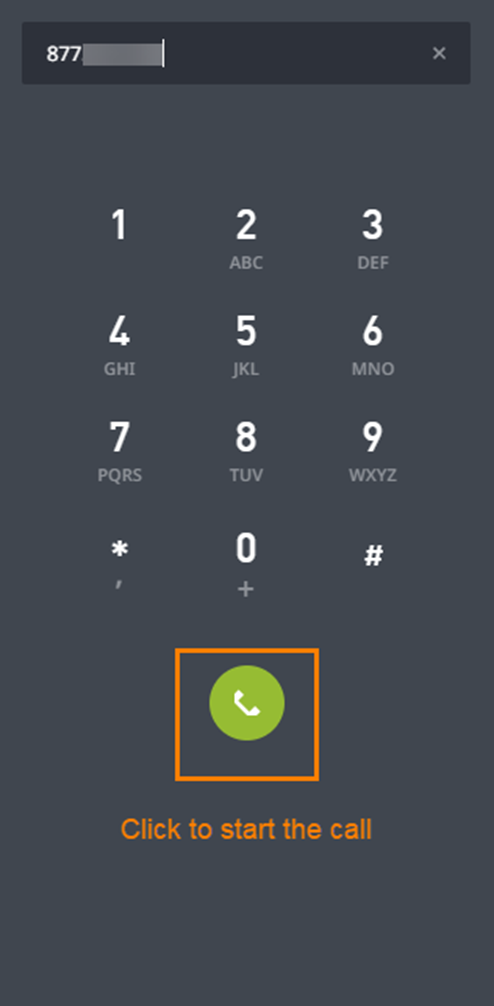
After that Elevate app will be opened with number dialed in keypad:
Notes:
No call is made until User press call button in Elevate app.
Subsequent click-to-call attempts will simply use Elevate app.
The first attempt to send click-to-call query is handled differently depending on the operating system.
Windows
Notes:
Click-to-call functionality is supported on Windows 8.1 and higher versions.
When Outlook integration is enabled you may also call any Outlook contact with phone number stored.
The first time you try click-to-call you will be presented with the list of apps which will include Elevate. Select Elevate and choose to make it the new default calling app.
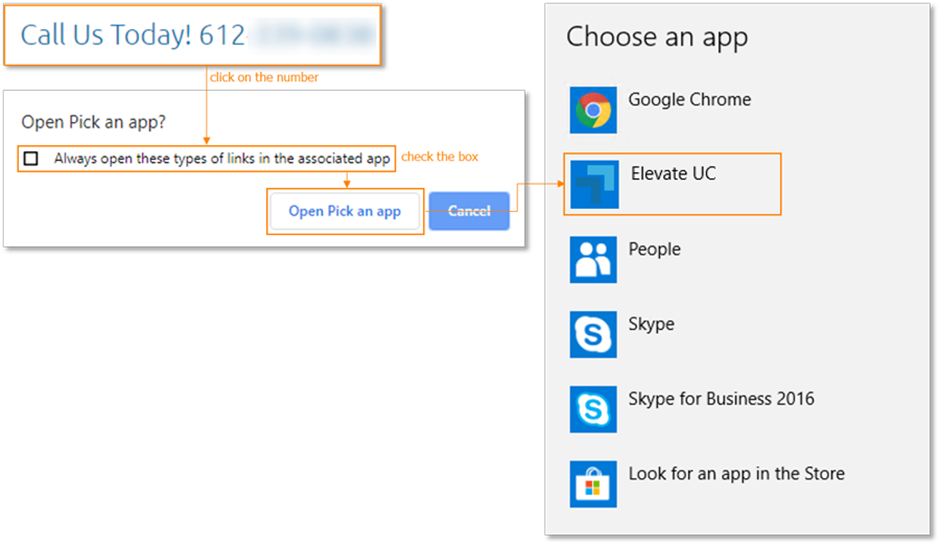
If you already have another application set as default calling app, this could be changed to Elevate app.
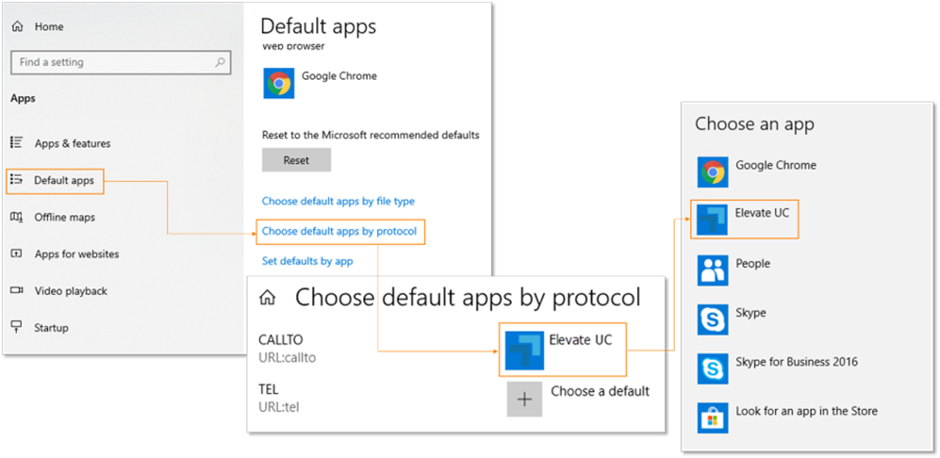
Navigate to Windows Settings > Apps > Default app
Go to Choose default apps by protocol
Scroll to TEL: and CALLTO: protocols and click on the app near it
Click on Elevate in the list.
Mac OS
The first time you try click-to-call it might offer you to open Elevate app to proceed.
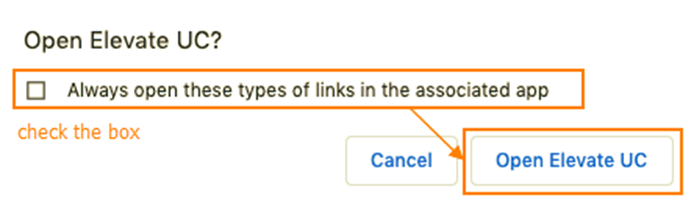
This will happen if Elevate app has been installed to the Applications folder. See more details in the article on how to install Elevate Desktop app for Mac.
If you were not automatically advised to choose Elevate app, it means that Mac OS defaults to another application as it’s calling app for handling TEL: and CALLTO: links.

Elevate app could be set as the default app for handling TEL: links by the following steps:
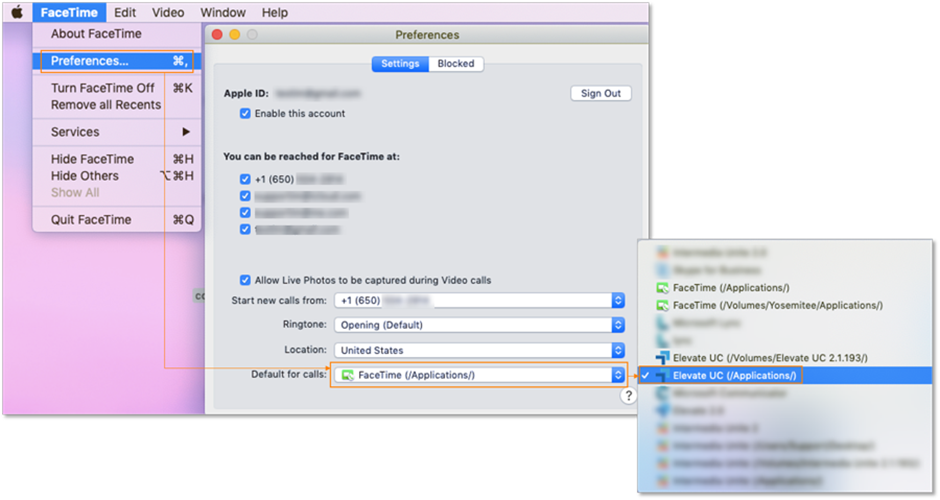
Open an app which is currently set as default calling application.
Go to Preferences.
From drop-down menu for Default for Calls choose Elevate.
Note: there might be multiple options for the same app, i.e. ~/volume , ~/Applications, etc.. If that happens choose the Elevate (/Applications/).
Note: in order to set Elevate app as a default app for handling CALLTO: links you will need to use third-party application.