Expansion Modules
Expansion modules are devices that can be attached to the phone to provide additional buttons (line keys) for use with your Elevate device.
Currently, the following models are supported:
Yealink EXP40 and EXP50 Expansion Modules - for Yealink T46G/S, T48G/S, T53, T53W, T54W, T57W, T58A.
Polycom VVX Expansion Modules or Polycom VVX colour Expansion modules - for Polycom VVX300, VVX310, VVX311, VVX400, VVX410, VVX411, VVX500 and VVX600. Polycom VVX450 support the EM50 module.
Cisco SPA500S Expansion Modules - for Cisco SPA525G2 and SPA504G.
Important: mind the difference between usual and coloured modules. Usual modules do not have labels (you will need to print labels and place them on the panel). On coloured modules, labels are programmed via the server and are displayed on the panel itself.
To add a new Expansion module:
Navigate to Services > Elevate > Devices > click on the name of the device > Expansion panels > Add expansion panel.
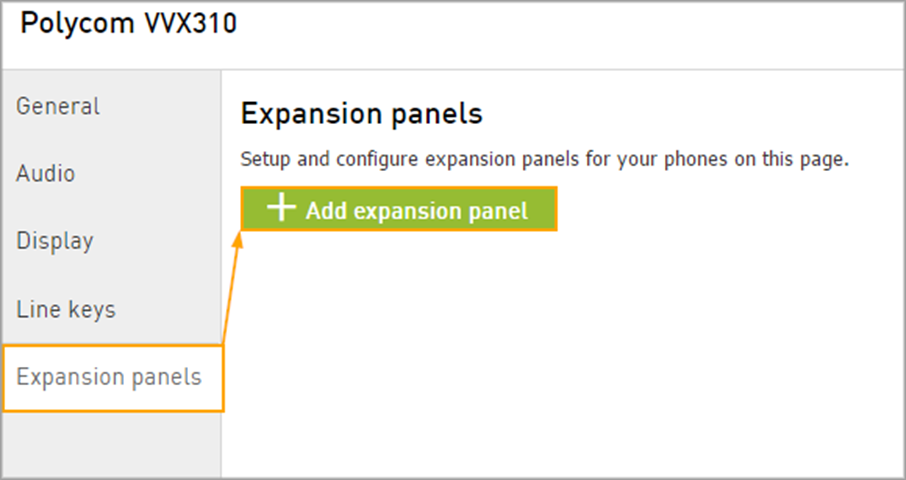
Note: not all phones support expansion modules. If you do not see the Expansion panels tab, then this model of the phone does not support expansion modules.
On the next page select the model of the Expansion module from the drop-down box.
Once the module is created, you will see the module listed under the Expansion panels tab; click on the name of the module to enter the button configuration.
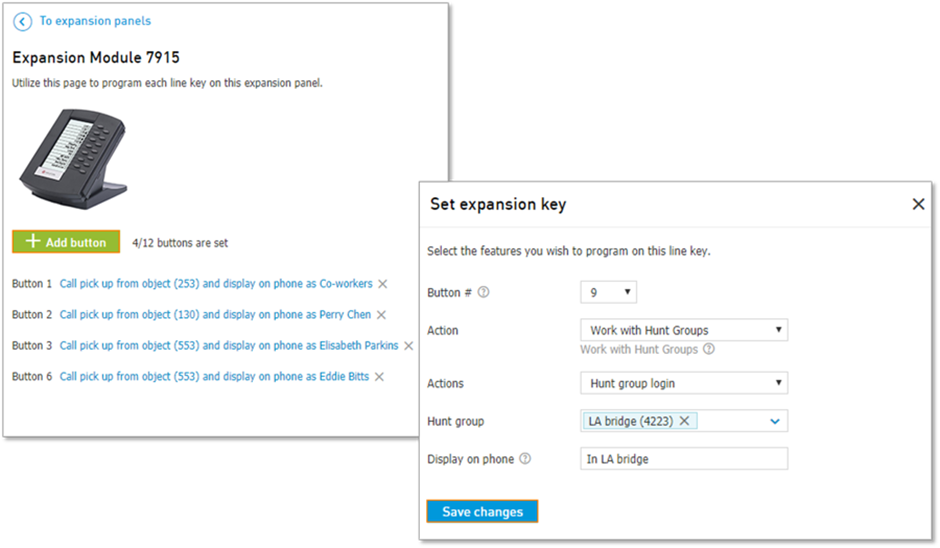
Click Add button to add additional keys:
Select action.
Note: Remote-line Key and Line Key Alias are not supported on expansion panels.Select object, actions, or user, according to the type of chosen line key.
Click Save changes.