Features
Here are the features that are available within Elevate chat:
Reply
You can respond to some particular messages in a chat via hovering over any text message, attachment or GIF. The Reply button will appear next to the message allowing to click on it and add text/attachment to the response message.
Edit Message
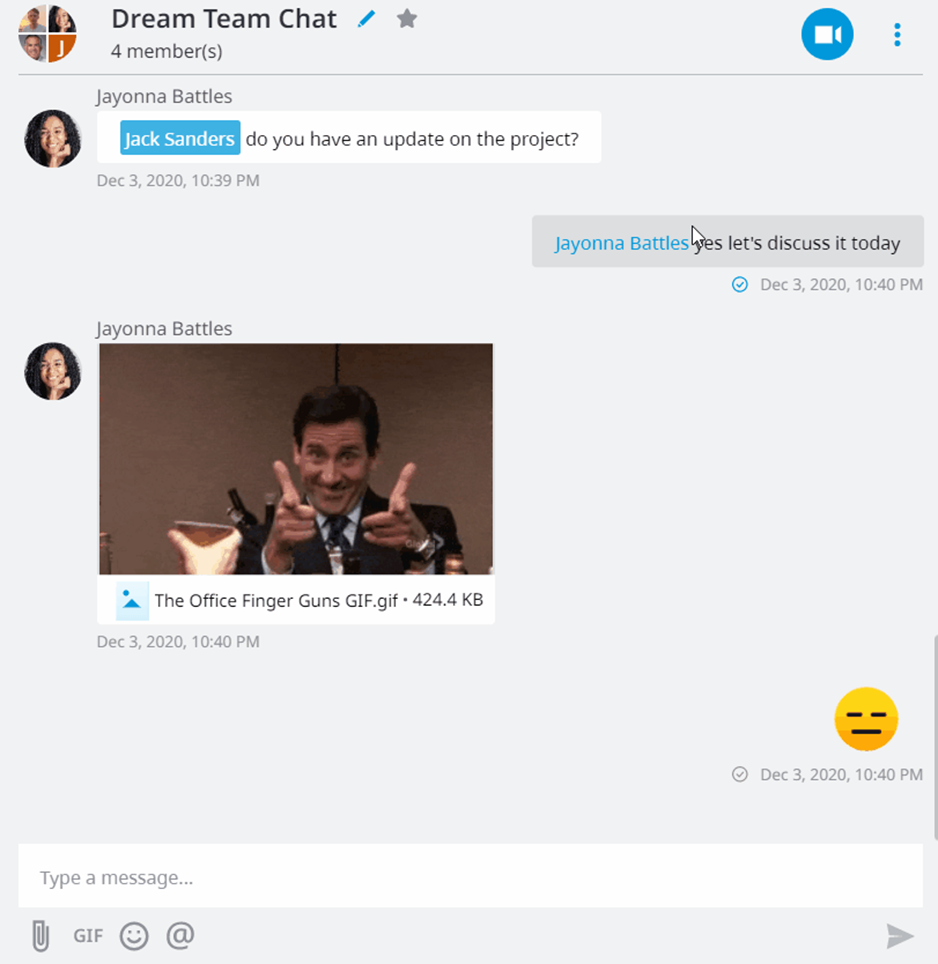
This feature allows the user to correct a typo, replace the original message with another text or paraphrase the original message.
Emoji
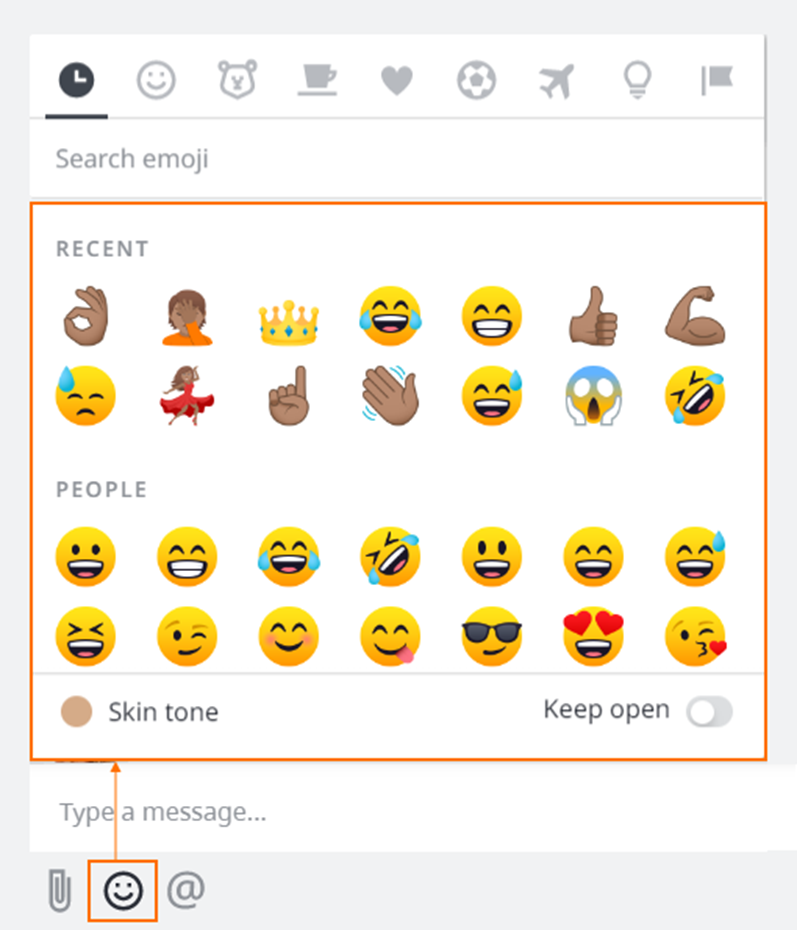
Customise your chat with your favourite smiley face icons. You can also choose skin tone and search for emojis.
Copy
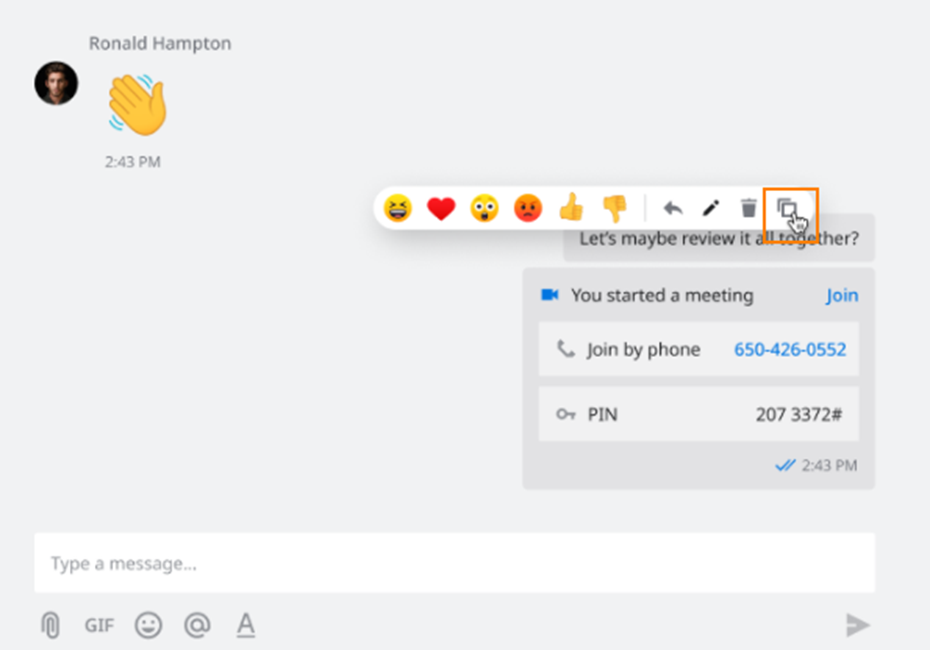
You can copy a message by hovering over it and clicking the copy icon. Any Elevate text message, attachment, link, GIF, Online Meeting invitation, will be saved to the clipboard and you will be able to paste it anywhere. Only one message can be copied at the same time.
Reactions
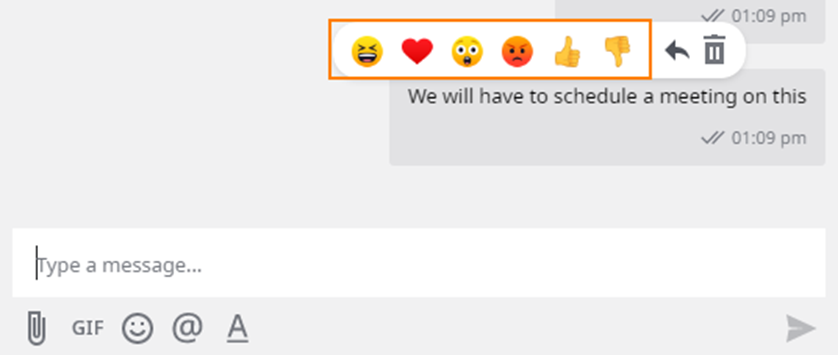
You can react to messages with emojis. To react to a message with an emoji, hover your mouse over the message you want to react to and choose one of the reactions.
GIF
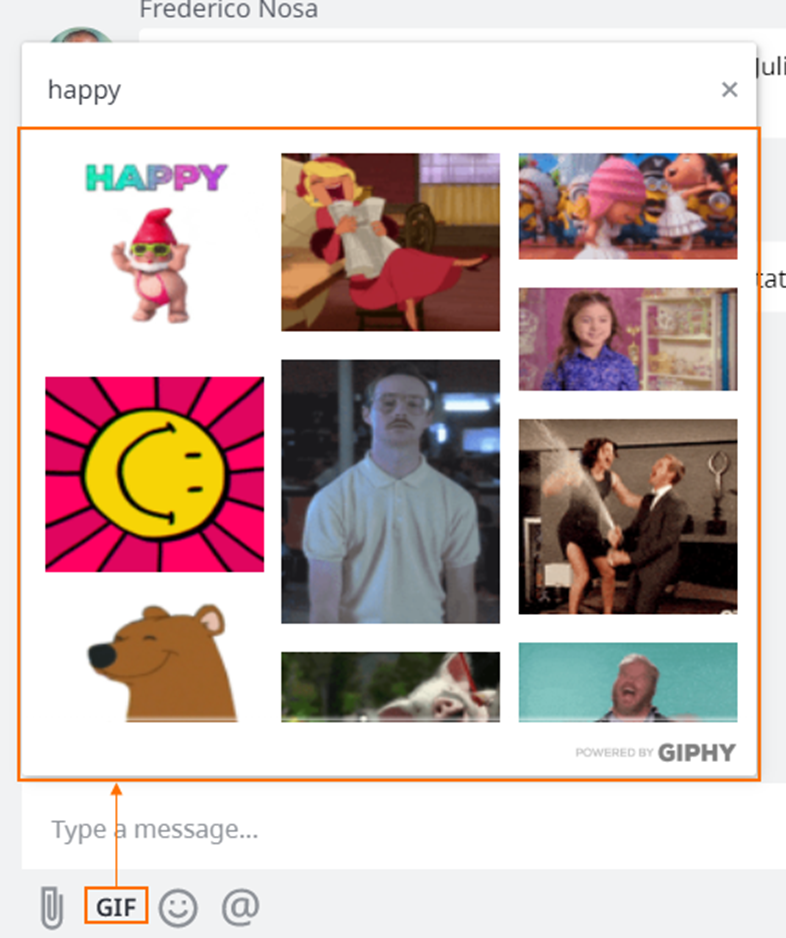
Send GIFs to show your mood, joke, ideas in motion.
Call
(Only for direct chats): place call to the chat partner through Elevate App.

Search
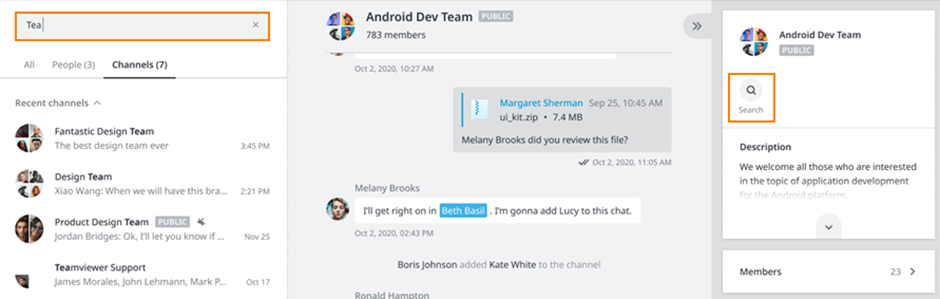
In order to search in chat/channel, use the right panel in the app. There is another Search field available on the left for People/Channels search by name:
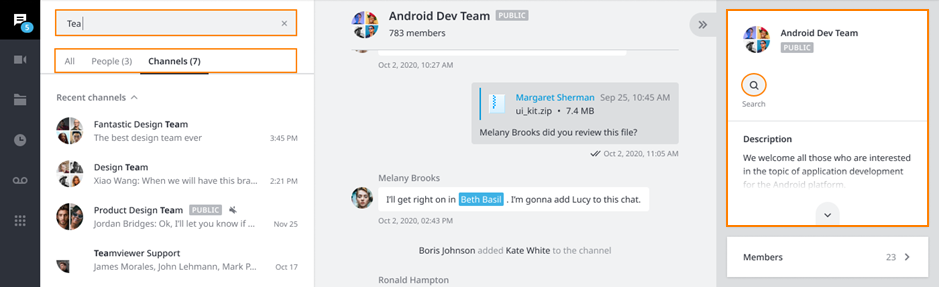
You can search for People, Channels or Messages using the Search panel in the left upper corner of the Elevate app. You can also search for messages in a particular chat, use the Search button located in the right panel of each chat. You can cancel the search by pressing the X symbol. This will return the chat list to the default view.
Global messages search allows users to find messages that contain search request and display chat history around. The search is initiated in the same search input that is used to search contacts and channels
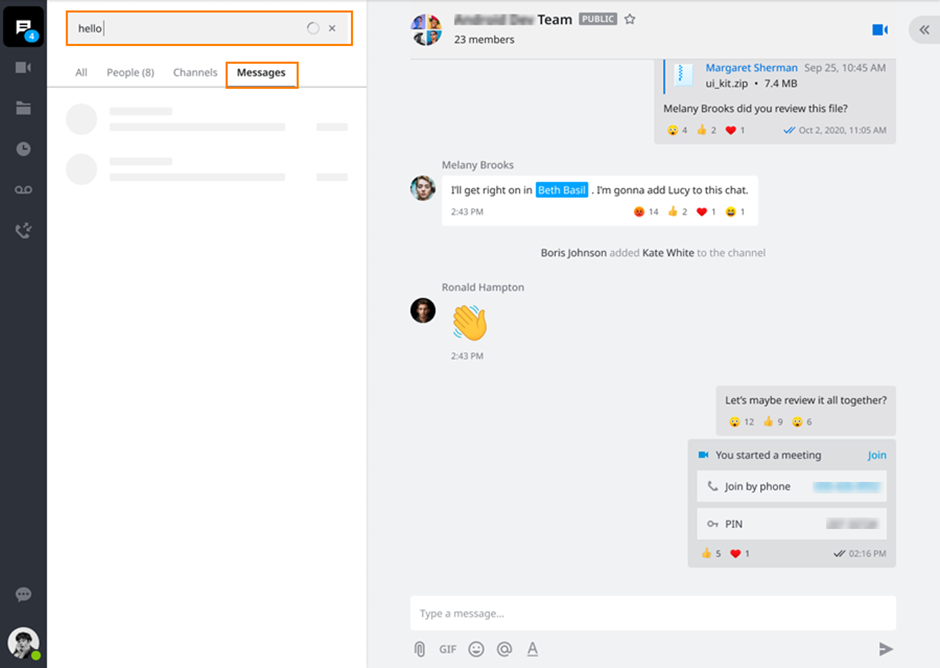
To start a search:
Type or paste a search request in the Search bar above the chats. Search will start automatically.
Go to Messages tab to see results.
Found messages will be displayed in chronological order.
Tap on the found message to see it in the chat history.
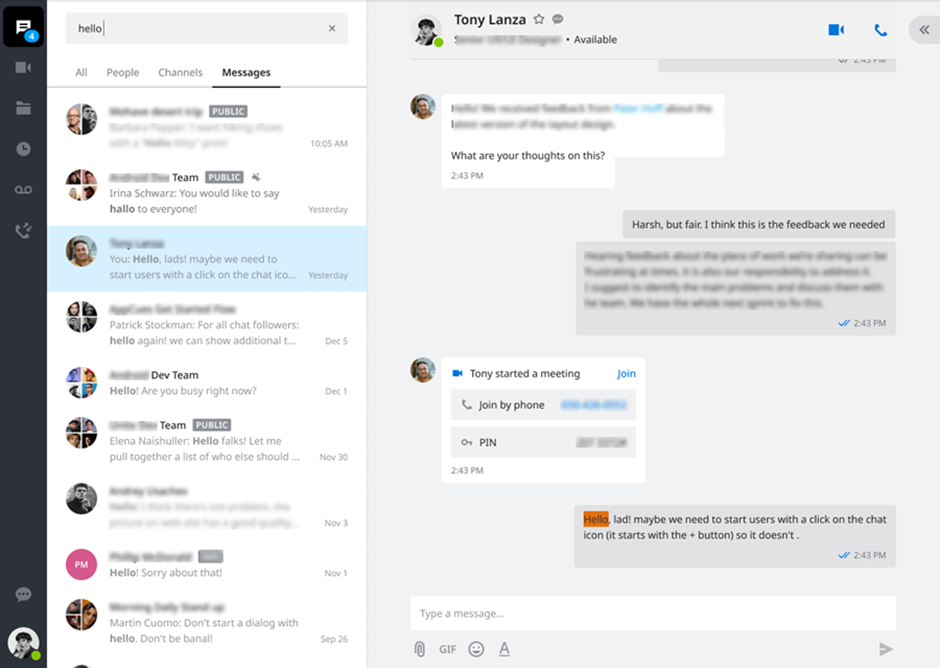
The first 50 found messages are displayed on the "Messages" tab, you can scroll down in the tab to see older results. Search entry must be 3 or more symbols. If you enter 2 words separated by space, messages containing both words in any order will be found. Messages containing the full word will be found (if you enter "hell" then messages containing "hello" will not be found).
Add members
Use the right panel in order to invite new people to the channel.
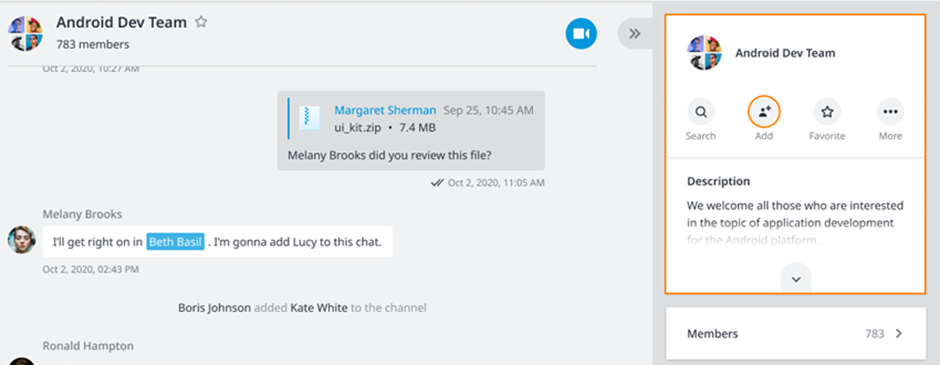
Favourites
Add your chats to the Favourites section. In chats roster or in chat window click on star icon near user avatar to make contact Favourited.
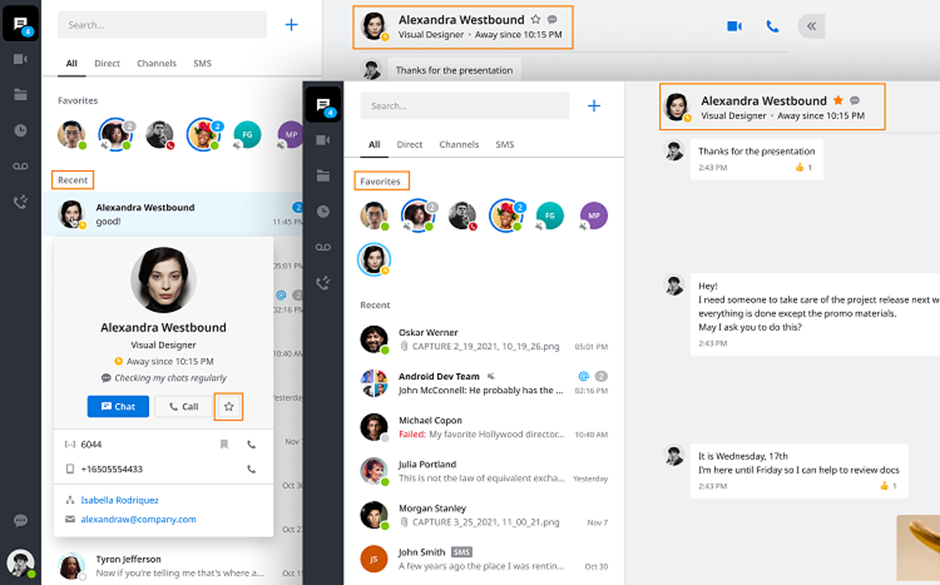
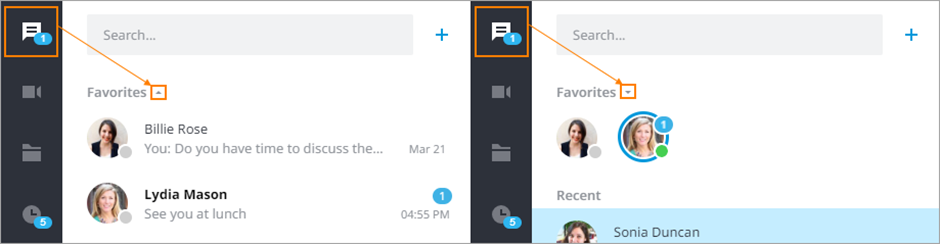
Favourited contacts and chat names will be displayed on top of the chats list. You can switch to the minimised version of the Favourites pane and back by clicking the arrowhead button on the right from the Favourites section name.
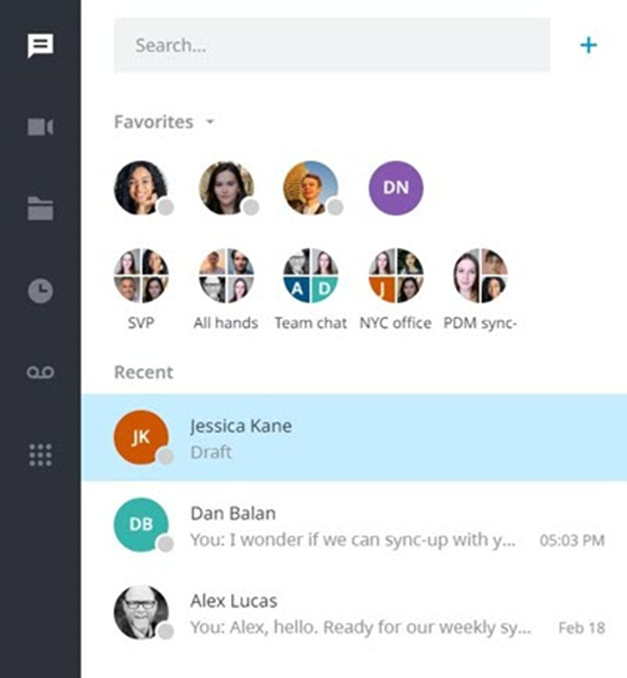
When using the Elevate desktop application (this feature is not available in the mobile application), favourited contacts and channels can be sorted by clicking and dragging the contact or channel to the desired location. Contacts and channels cannot be mixed together.
Note: In the Mobile app, Favourited contacts will be listed on the top under Contacts list when Chat list will display recent messages on top instead. In the Mobile app, use the Pin function to prioritise conversations.
Rich Text Editor
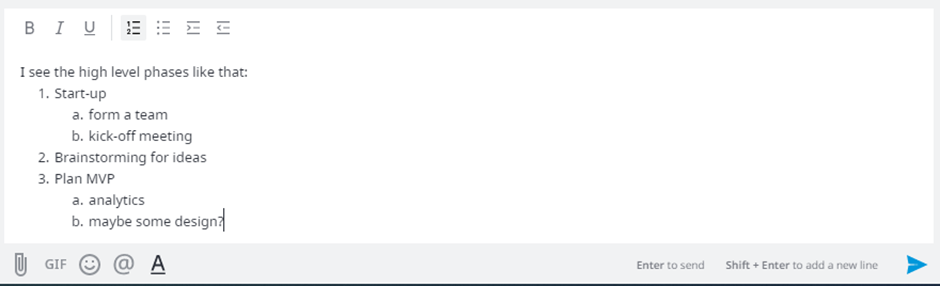
Format your chat messages. To enable Rich text editor, click on A at the bottom of the input field. It will open up the list of formatting options.
Note: Rich text editor is available only in the direct chats and channels, and is not available in SMS

Rich Text Editor allows you to:
make text bold/italic/underlined
create multilevel bulleted or numbered lists
copy and paste formatted text from other apps (to some extent)
copy and paste formatted text to other apps (to some extent)

Files in chats: attachments list
Review a list of files sent in chat. This feature is available in 1-1 chats and channels for users who have the ShareSync service enabled. Files become available to new members once they’ve been added to the chat. The list of those files can be checked by clicking Files on the right of the chat screen.
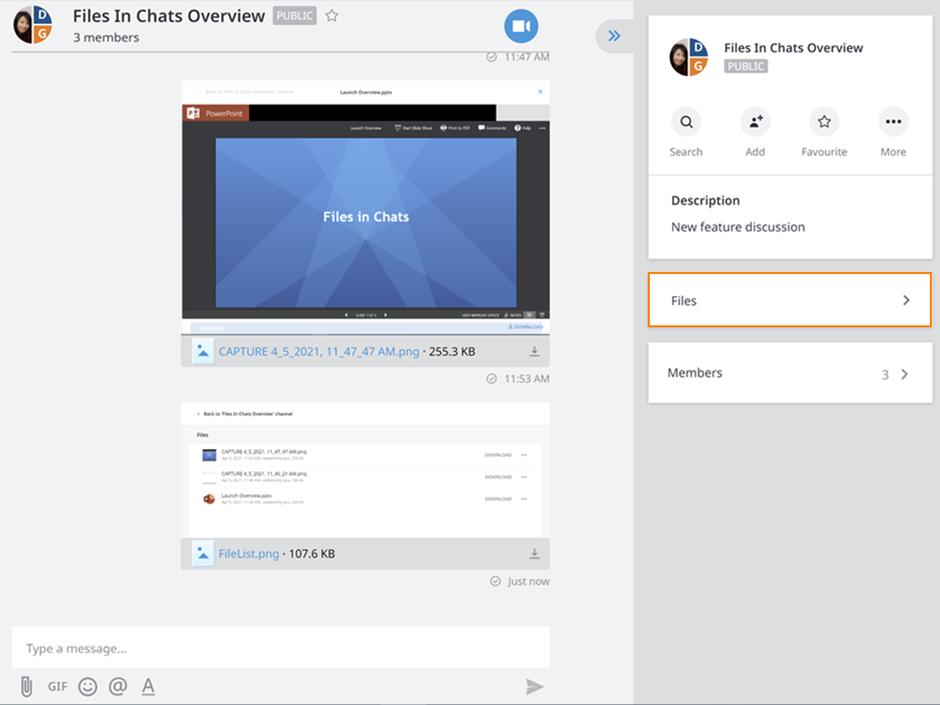
All shared filed will be listed here. You can edit files directly from Files in chat in two ways:
Edit Office files with the Edit Online option. It is similar to the Office Online edit in the ShareSync tab and requires an Office Online license.
Edit different types of documents (Office documents, graphical, text) locally, using installed applications. To do so, you need to select Edit in the desktop app option and have ShareSync desktop app installed and running.
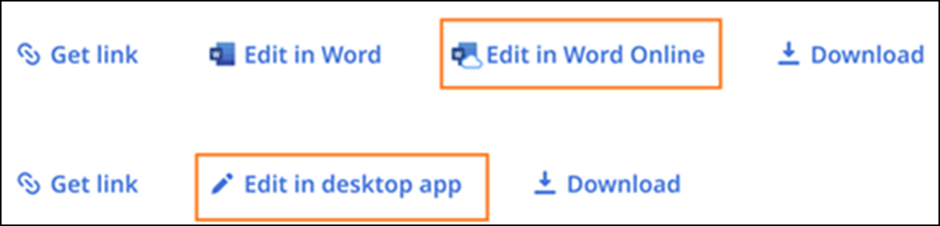
To pin a file to the top of the file list in chat, select Pin. Pinned items are shared with all chat/channel members. Every chat member could change pins.
To share a file, create a link to it. The link has view & download permissions and inherits ShareSync Sharing Policy in the organisation if there are any (password protection, period of expiration, etc.).
To add existent ShareSync folder to the chat space, click the Share existing folder option at the top-right. Select a folder or sub-folder to share (or create a new sub-folder to share) and level of access (View/Modify). Once shared, chat members will be able to view, download, edit online, create files, or upload files to this folder (the user's access level determines which of these options are available to them). Every chat member can unshare the folder.
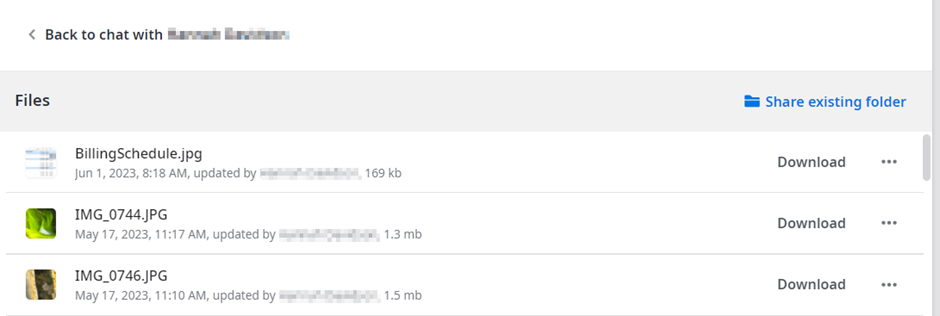
Note: currently, Files chat folder cannot be accessed via the ShareSync desktop client or ShareSync web interface, files sent in chats cannot be deleted or unshared; however, chat files size is not included in the ShareSync account disk quota (except existing folder shared to chat).
Mention
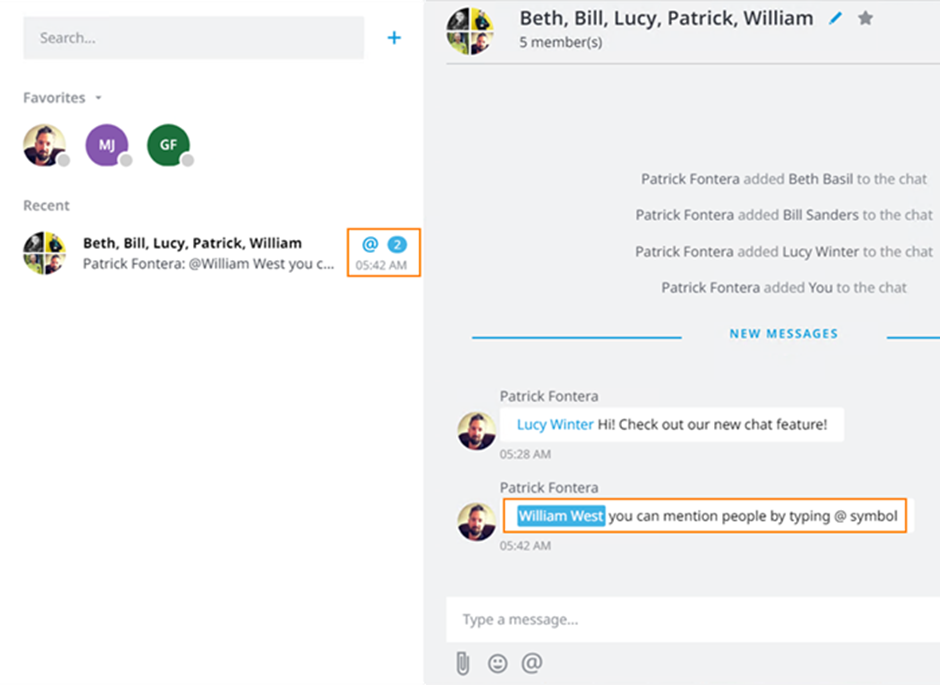
You can draw a person's attention to a particular channel by mentioning their name. To do that, click the @ symbol icon below the "Type a message..." box and select a person you would like to mention. Alternatively, you can type in "@" symbol and a list of channel members will pop up. After you select a person to mention, their name will appear in blue in the message box. You can continue typing your message after that.
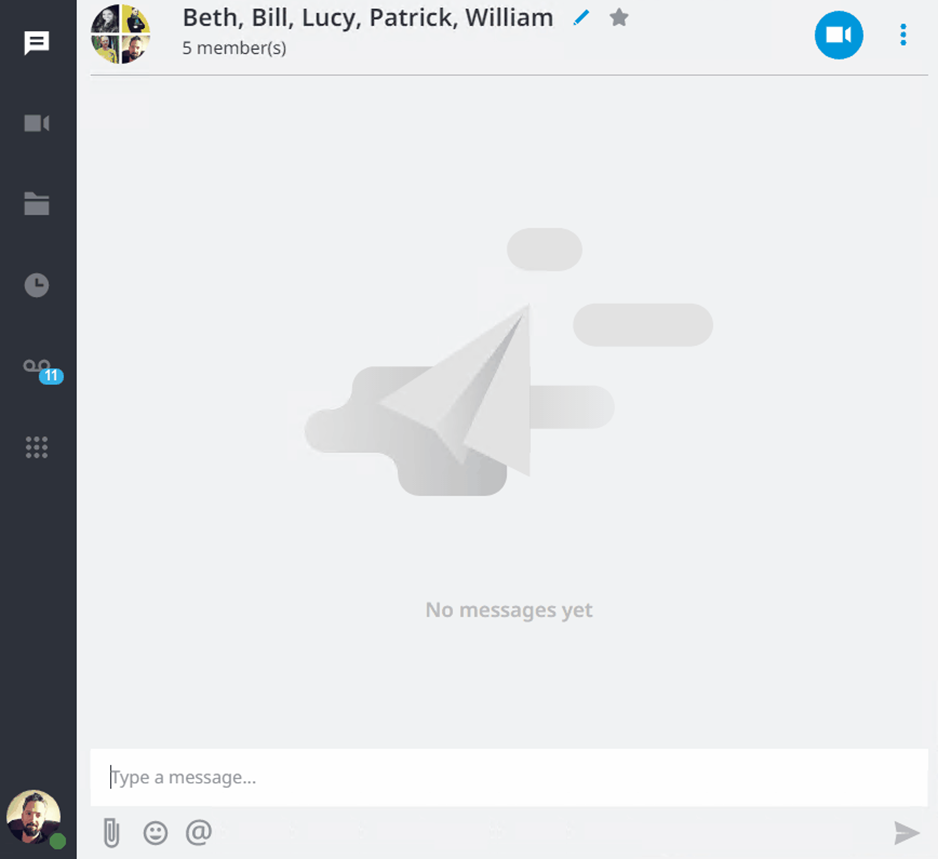
A person whose name was mentioned will see a notification about it in the contacts and chats pane as a blue "@" symbol near a chat name. Also, they will see their name highlighted in blue in the chat. The notification will appear even if a person who was mentioned has muted the chat.
Spellcheck
In the Desktop app, auto-enabled spellcheck feature highlights misspelled words in the chat message box and provides potential corrections from a predefined dictionary according to the system language that is set in your OS. Custom dictionary is not supported yet.
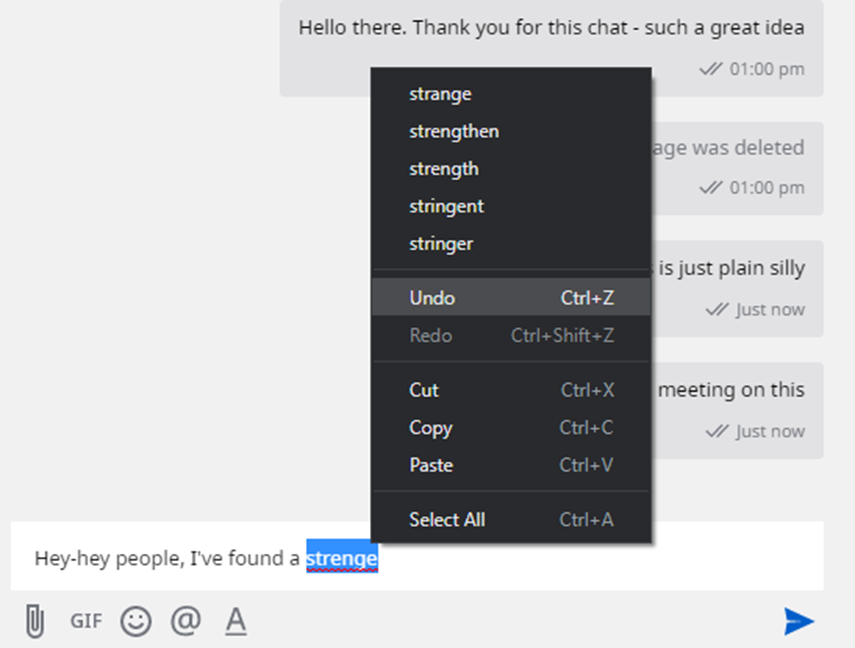
Note: spellcheck is not supported on Windows 7.
Mute
You can mute any direct chat or channel by navigating to ••• button at the top right and selecting Mute:
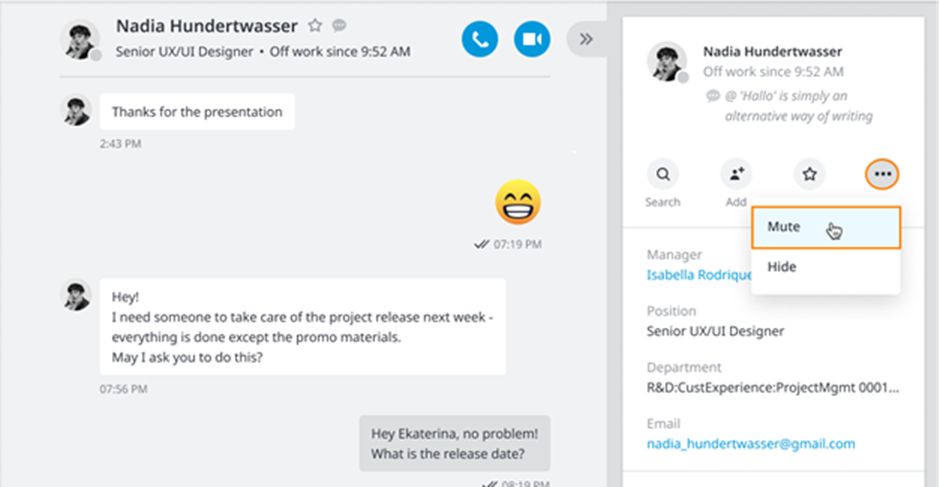
To unmute - simply select Unmute in the same dropdown. The muted chats and channels will have a Muted icon next to them:

The mute feature stops incoming notifications on the specified chat or channel. This setting will be synchronised between all User's devices.
Hide
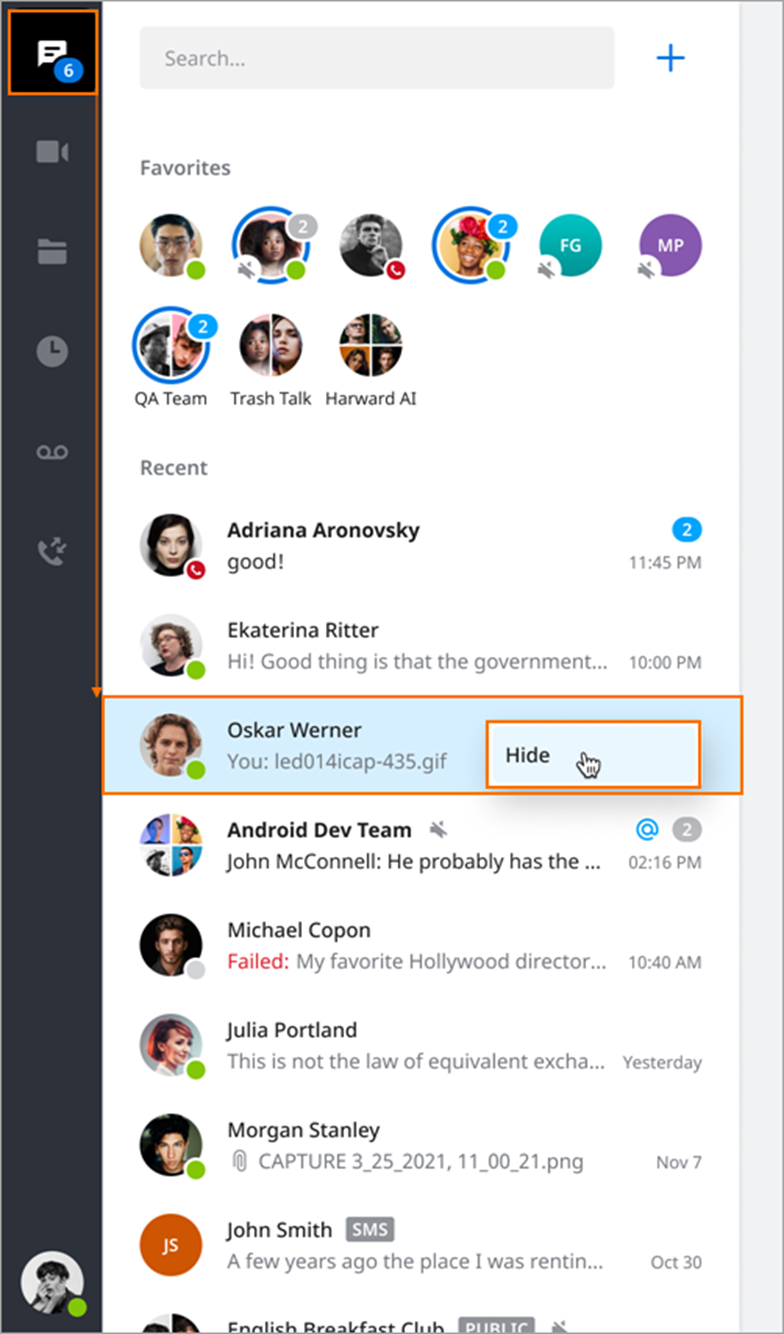
Users can hide a conversation from list of recent conversations until a new message appears in that conversation. Works for personal chats, private and public group chats.
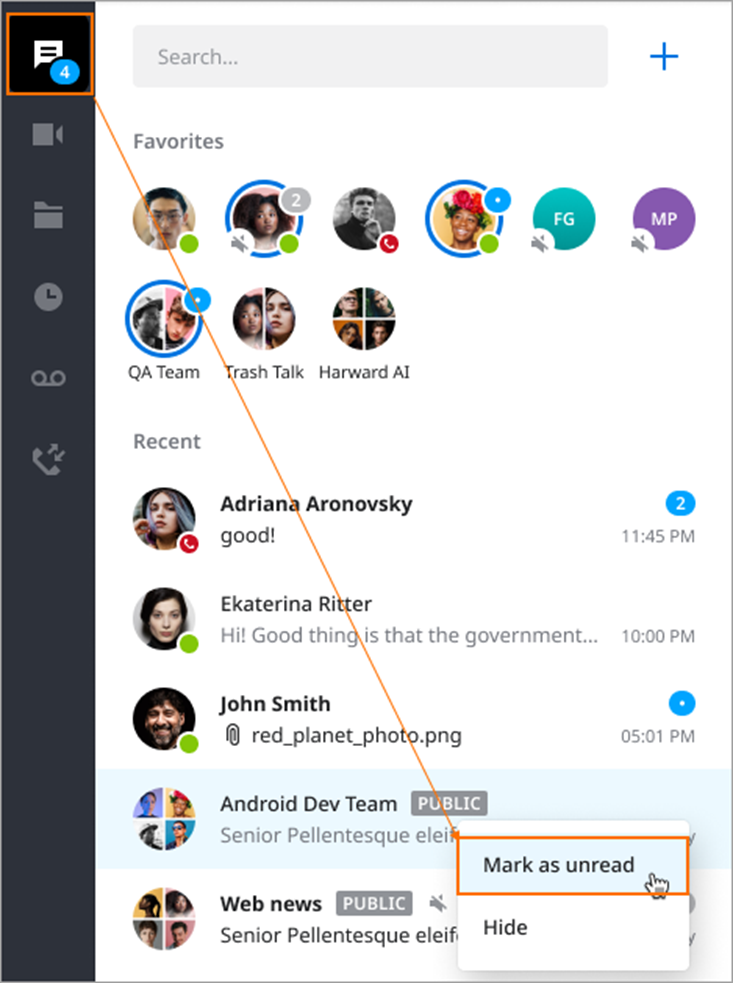
Mark as unread
This feature allows user to mark any chat as unread so they can still have it highlighted in chat list.