
How to Change Between Deskphone and Computer Modes
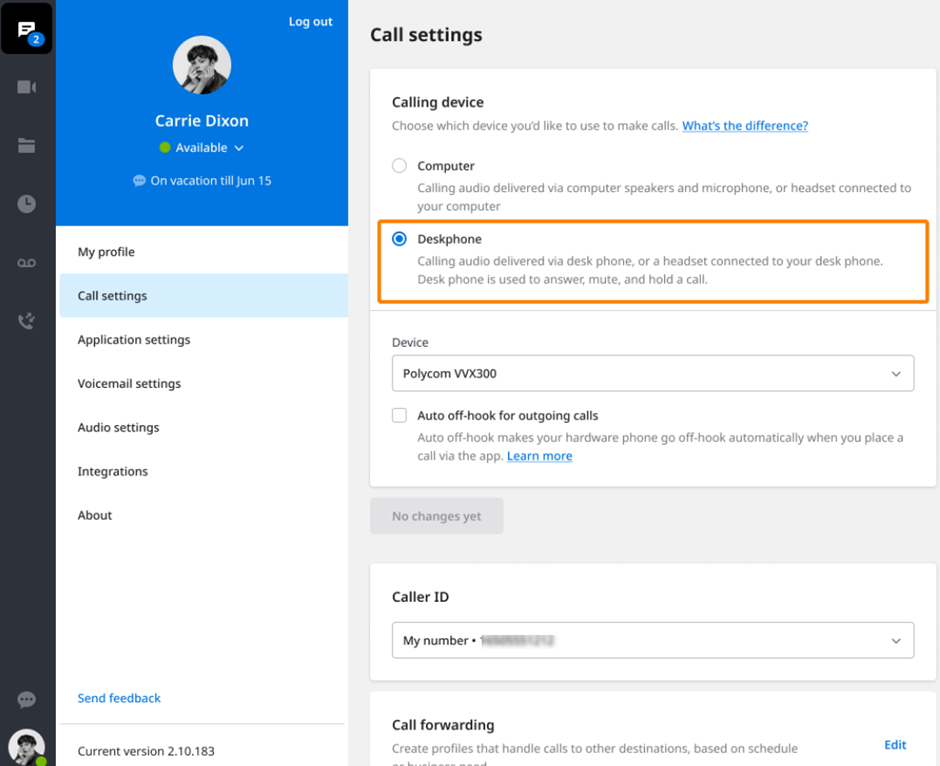
To choose the Deskphone device, navigate to Settings > Call Settings > select the Deskphone device from the drop-down list > Save changes.
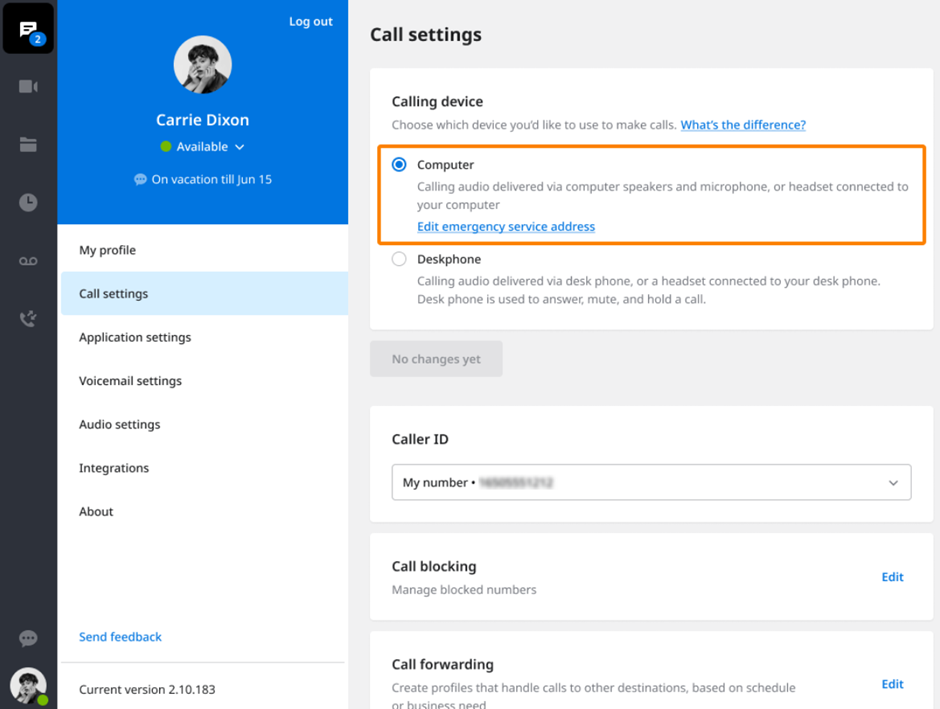
To choose Computer mode, navigate to Settings > Call Settings > select Computer in the Calling Device section > Save changes.
FAQ
Why can't I mute, hold, use the keypad, or answer the call in the call bar/notification?
If you are using the Elevate application in Deskphone mode, you can get access to all the active call management features on the hardware desk phone.
Features such as mute, hold, add a new call, merge calls, or answering calls must be done on the hardware device when in Deskphone mode. You can check which mode is selected by visiting the Settings section in your app.
Why can't I see an active call in my app that has been placed by my hardware device?
If you start the call using your hardware deskphone then there can be some cases (below) when the active call might not be presented in the app:
If you start the app and you are already on an active call then the app will not receive the info about this active call and so the call bar will not be shown.
If your network is reset then the call will not be presented in the app; however, when the call has ended it will show in the call history.