
Line Keys
avigate to Services > Elevate > Devices > click on the name of the device.
Click on the Line keys tab.
You will see the number of line keys depending on your phone's model. Click on Action near the button you need to modify.
Note: you cannot modify line key #1 as it is always assigned to the User of this phone.
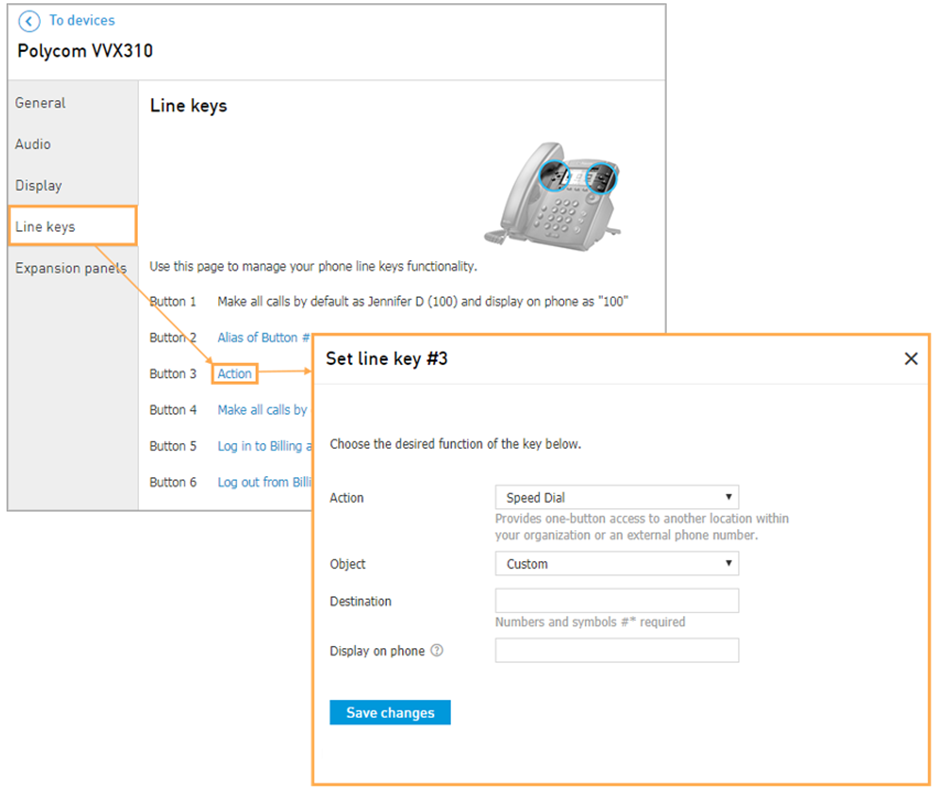
You may choose the following options:
Speed Dial
Provides one-button access to another location within your organisation or an external phone number.
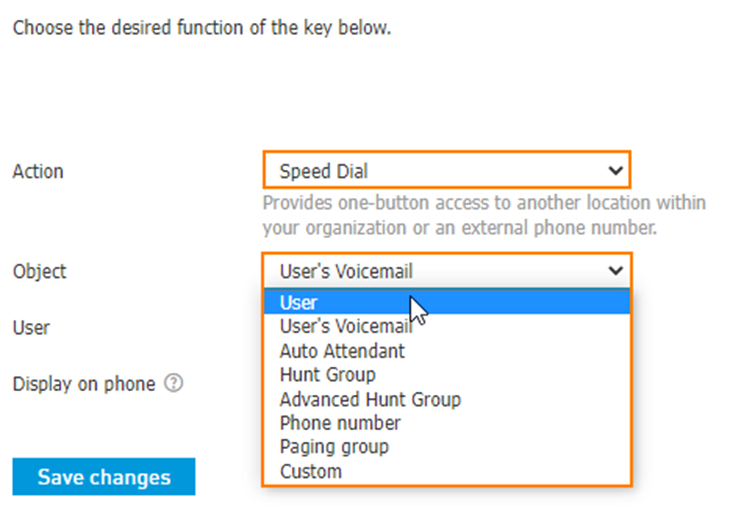
Speed dial can be set to immediately dial:
User
User's Voicemail
Auto Attendant
Hunt Group
Advanced Hunt Group
Phone number
Paging Group
Custom
This option is useful for:
Users that frequently dial the same extensions or phone numbers.
Users that frequently transfer callers to a specific User, Hunt Group (Basic or Advanced), Auto Attendant, or Resource.
Note: Speed Dial keys added from the Line Keys tab will display an asterisk (*) next to the extension (e.g., Matthew T.* or 105*); this signifies that the Speed Dial was added from the CONTROL PANEL UI
If you press the Remote Line Key on the phone, then all outbound calls will be made from it by default. You will need to press line key 1 to dial out from your own extension.
Hunt Group (Basic or Advanced) Login/Logout
This button allows the user to log in to or log out from a specific Hunt Group.
This option is useful for:
Users that are part of a Hunt Group and need to log in or out daily.
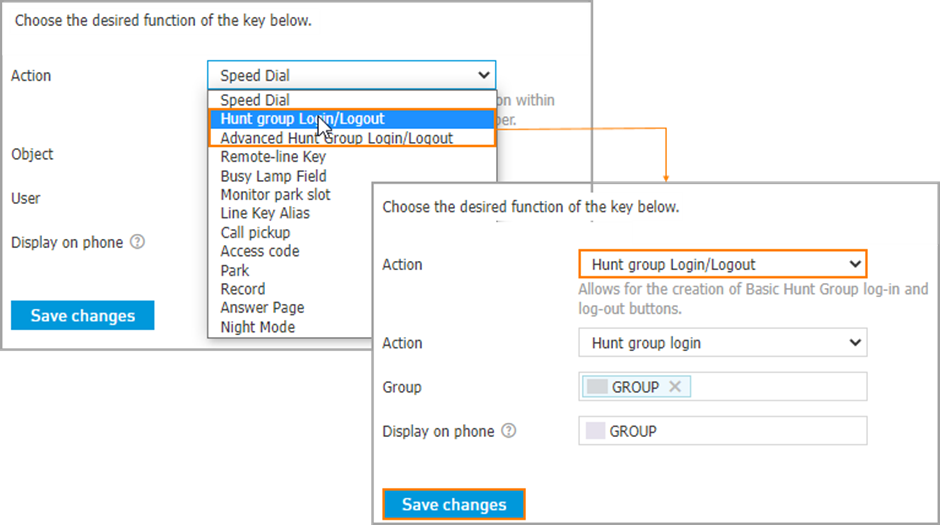
Note: you will only see and be able to assign Hunt Groups that the User is currently assigned to; if there are no hunt Groups listed, check the Agents tab in the applicable Hunt Group.
Remote-line Key
Allows making and receiving phone calls on behalf of another User or Resource account. Internal calls will appear to be coming from this User. External calls will display the User’s caller ID. A device with a remote line key set up will receive calls simultaneously with the original device and they both will ring. You can set a display name for the Remote-line key for your device; this display name is only visible on the assigned device's screen and does not change the caller id name for internal extension dialling or external calls.
This option is useful for:
Running multiple businesses from your Elevate system; the Remote-line key allows you to set up a button for each business on your phone to present the correct outbound caller ID when dialling out from the corresponding line key.
When an assistant needs to place outbound calls on behalf of another employee.
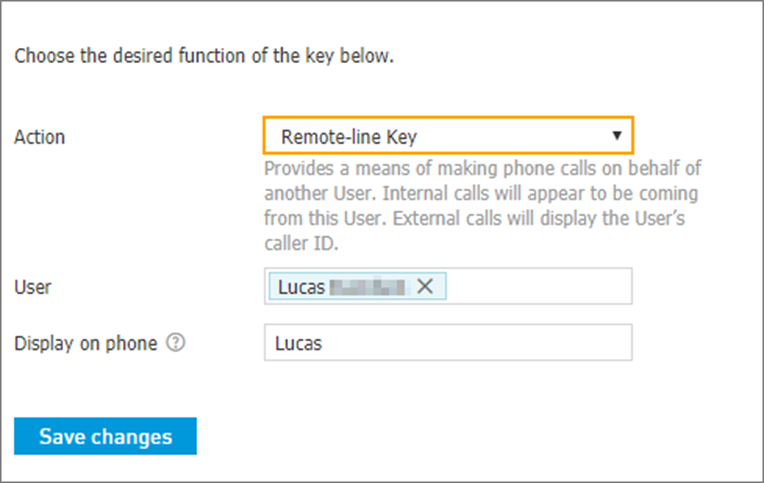
Note: if you are setting a remote line key for a user the user must have a device assigned to them for this function to work.
Busy Lamp Field
Displays the current status of another User’s phone, allows remote answering of calls ringing on the User’s phone, and acts as a speed dial for that User.
This option is useful for:
Monitoring: to see when other Users are on phone calls (generally indicated by a red light on the line key, depending on the device)
When an assistant needs to answer calls on behalf of another User
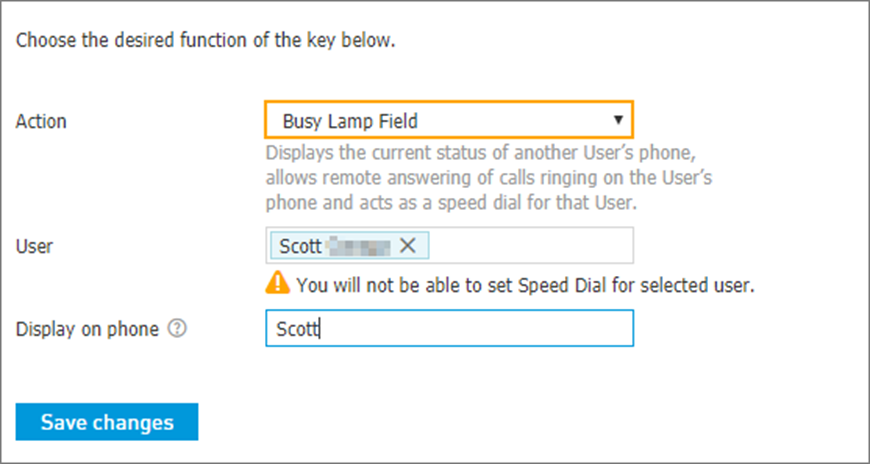
Note: shouldn't be configured for the phones which are members of the simultaneous hunt groups, as this will lead to oversaturation of your LAN with SIP packets and cause call quality issues.
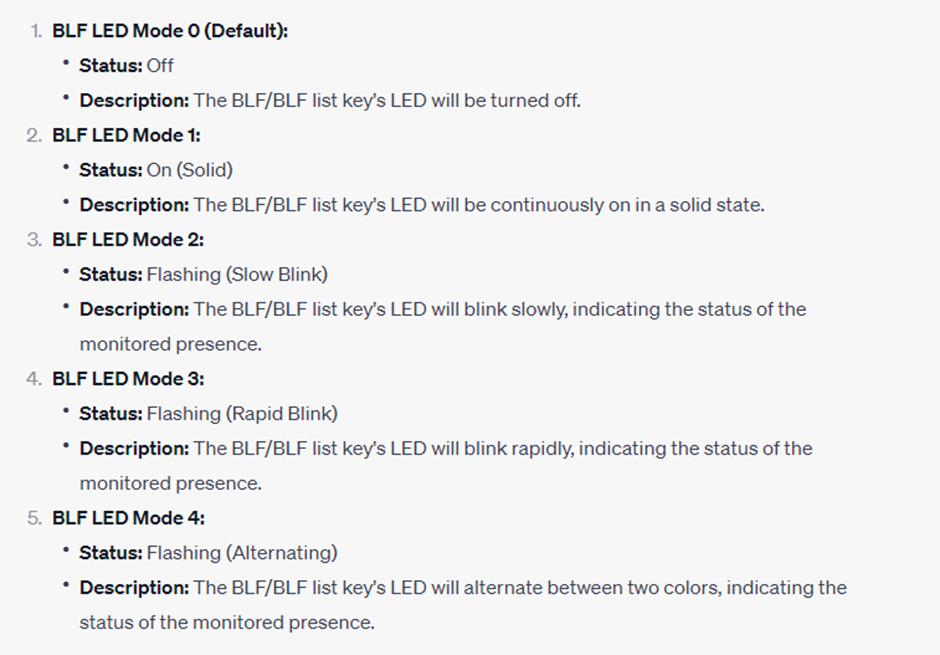
BLF LED Mode
BLF LED mode is a phone feature that uses indicator lights to show whether other extensions are available, busy, or on a call in a communication system.
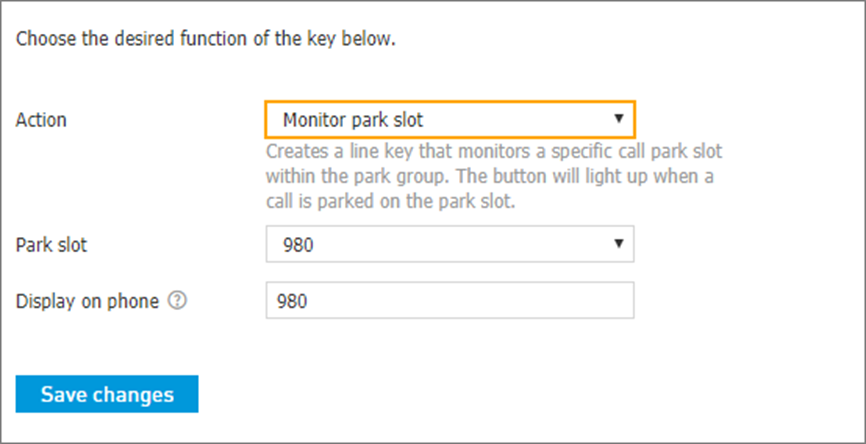
Monitor Park Slot
Creates a line key that monitors a specific call park extension to alert you when a call is parked on that extension.
This option is useful for:
Monitoring: to see when a call is parked on a specific extension (generally indicated by a red light on the line key, depending on the device)
Note: call Park extension range depends on the account's set extension length. 3-digit accounts are 980 to 987 and 989; 4-digit accounts are 9980 to 9989; 5-digit accounts are 99980 to 99989.Picking up calls; this key can also be used to pick up calls currently available in the park slot.
Line Key Alias
Provide extra line capacity for making and receiving calls for the provisioned extension on this device.
This option is useful for:
Managing multiple inbound calls to a single extension or user device.
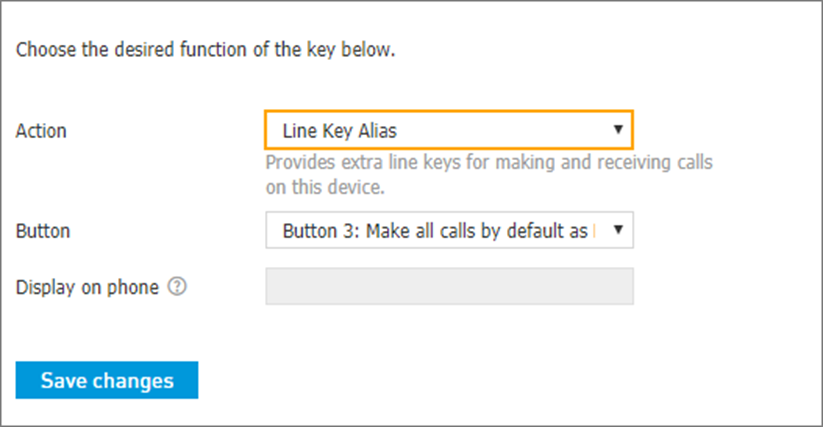
Note: Line Key Alias can cause SIP Saturation issues with hunt groups.
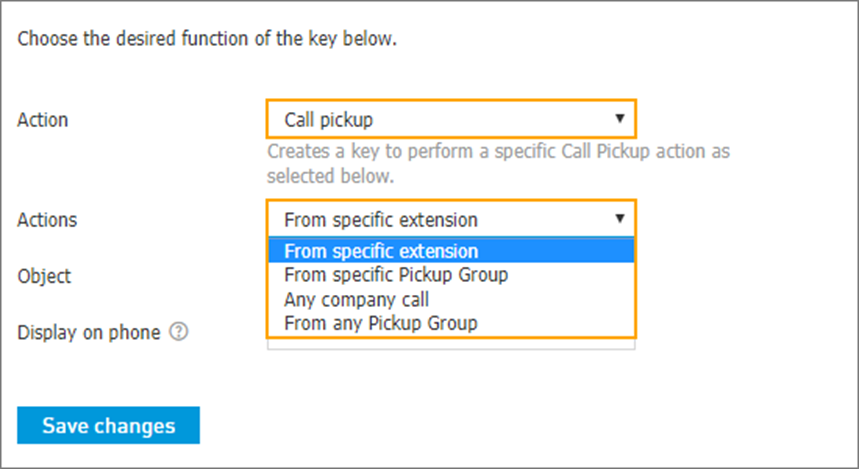
Call pickup
Choose one of the following options:
From specific extension
From specific Pickup Group
Any company call
From any Pickup Group
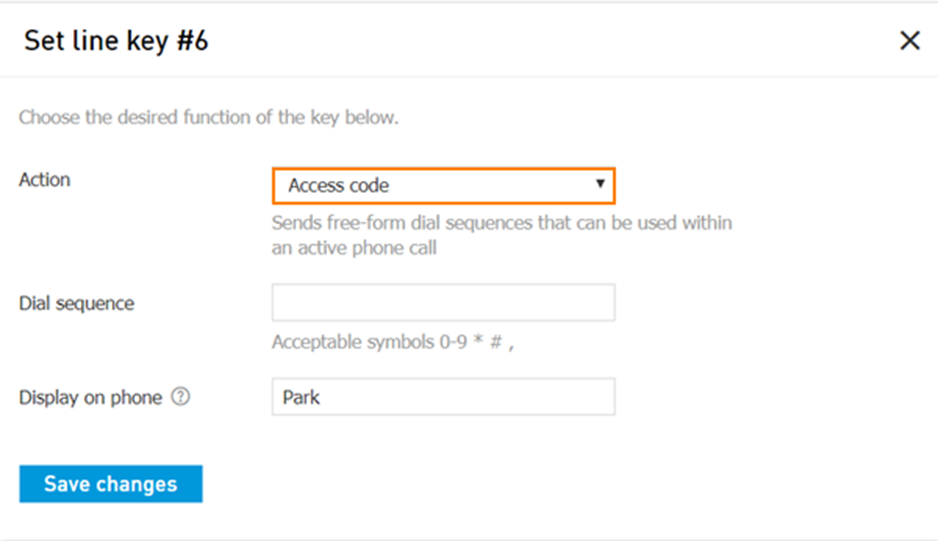
Access code
Allows to program a line key to send a tone (DTMF) sequence during an active phone call. Dial sequence may include digits and special characters like a pound (#), an asterisk (*) for all phones, and also a comma (,) for Poly and Yealink phones. You can set up a label that will be displayed on the phone.
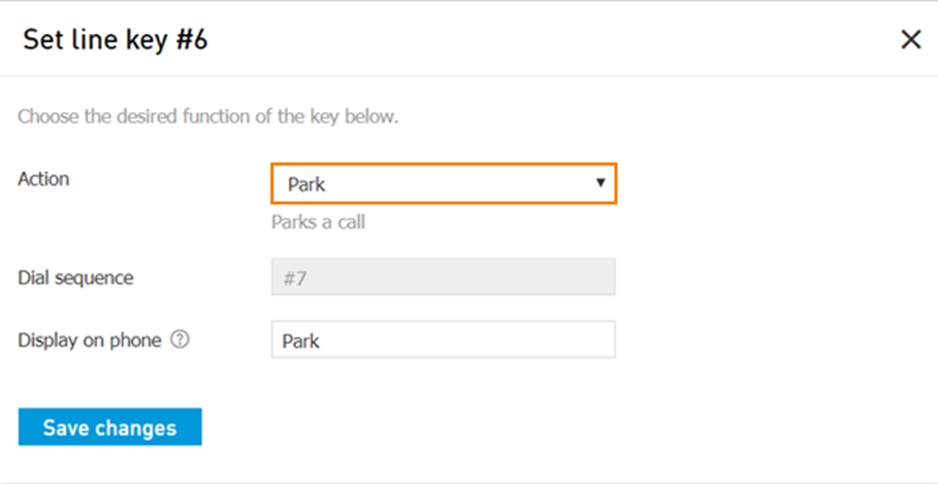
Park
Pre-programmed line key that dials #7 to park a call.
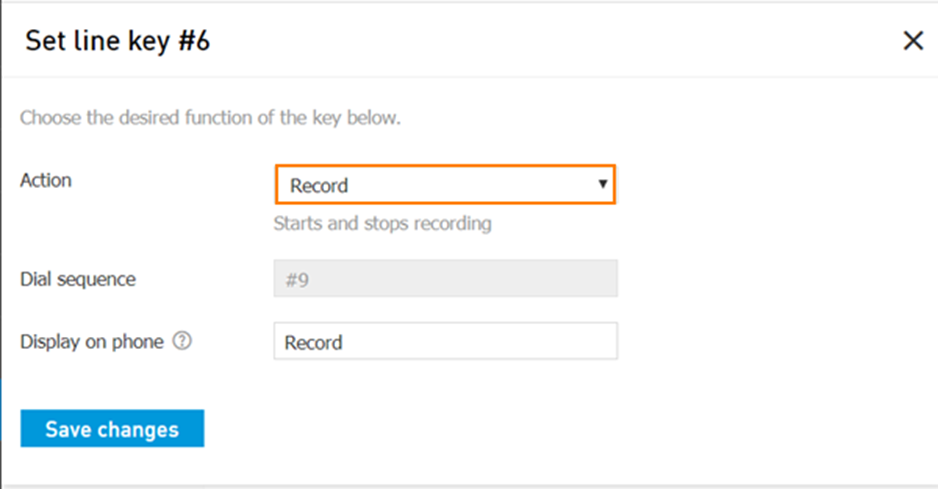
Record
Pre-programmed line key that dials #9 to start or stop call recording.
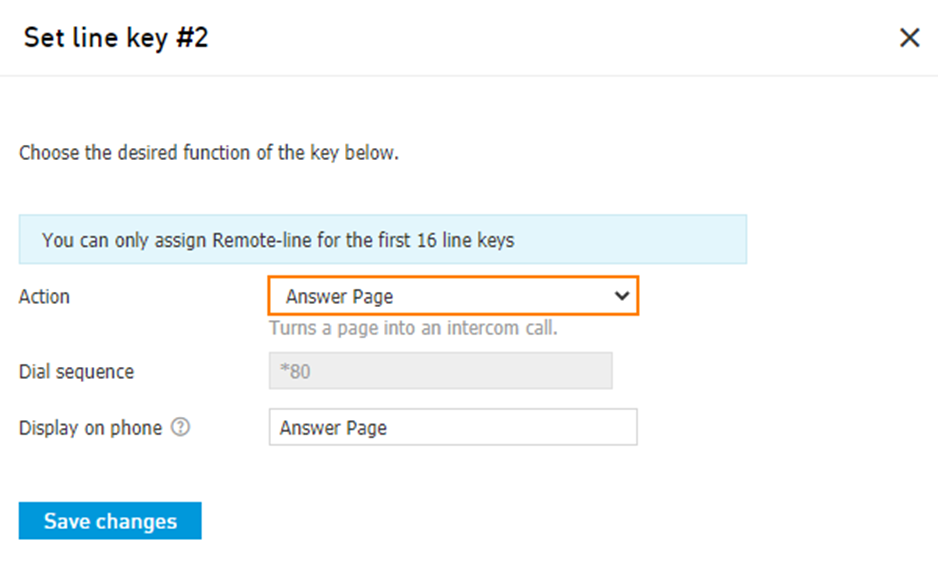
Answer Page
Pre-programmed line key that dials *80 to turn a page into an intercom call.
Night mode
Pre-programmed line key that turns Night mode On/Off
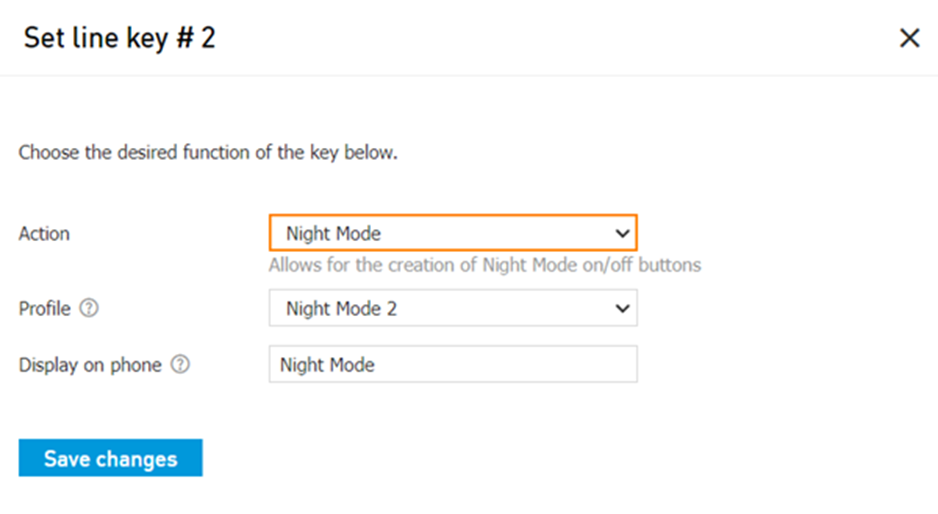
Select an option, the user or resource to assign, and what should be shown on display of the phone. Click Save changes to confirm the key.
Once you're satisfied with your line key configuration, and all keys have been saved, click on Reboot device at the top of the page.