
Make a call
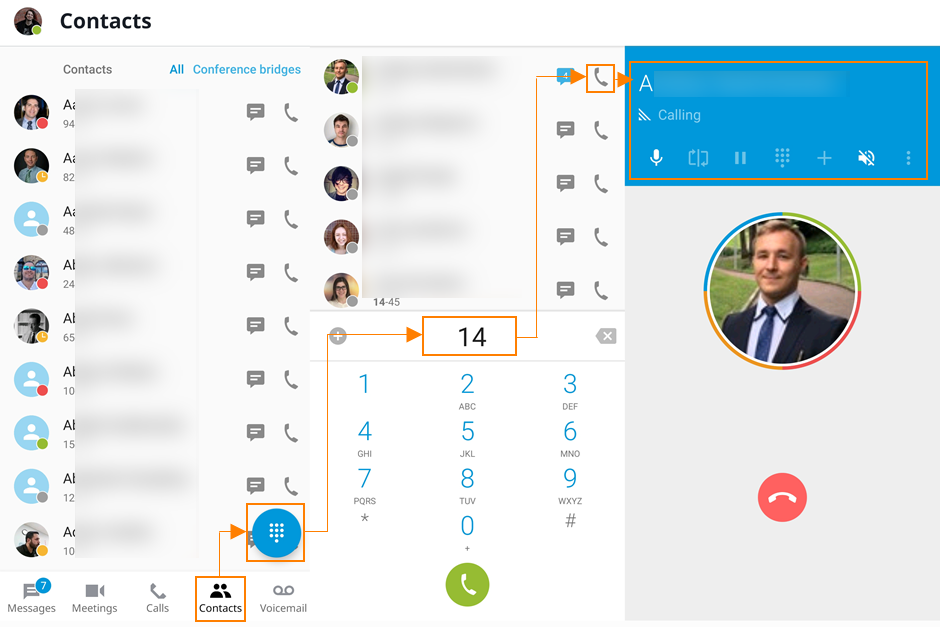
You may start a new call by clicking on the phone icon near the contact, or navigating to Dial Pad.
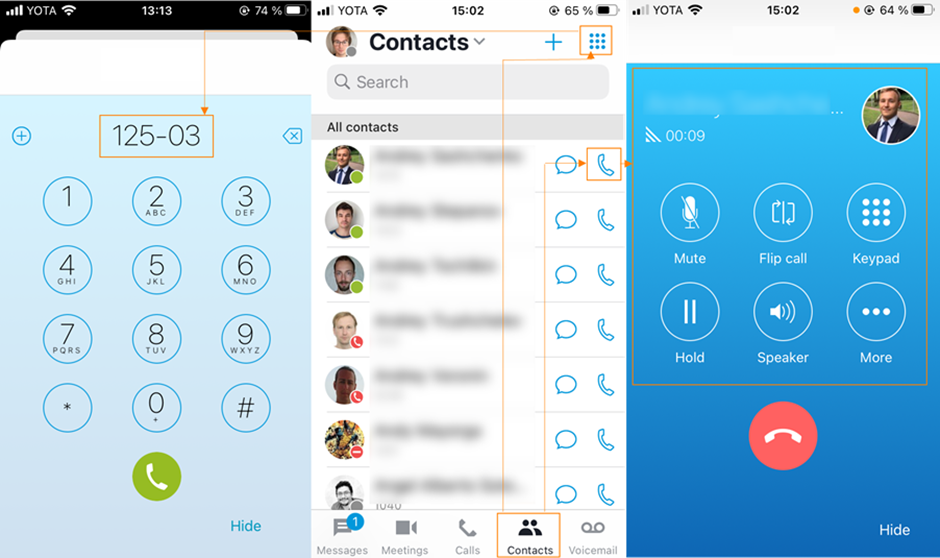
In the Dial Pad start entering the phone or extension number. The mobile application will search for the results if the contact exists in your contact directory. To dial someone from your contact directory simply click on the handset icon next to that person.
If a call is made and the recipient’s line is busy, the caller will hear a busy tone and see the 'Busy' status on the active call screen. All call actions will be disabled for busy calls and the call will automatically hang up after 3 seconds or the caller may use the End call button.
Important Technical Considerations:
For all Android devices currently using connection service (starting from API level 23, Android 6.0) there is currently a possibility to have multiple ongoing calls only from a single application.
This specifically means that a user cannot have simultaneous ongoing calls from GSM & Elevate apps or from multiple 3rd party apps (like Skype & WhatsApp, etc).
This is the system-level limitation, not related to a specific calling app. For example, a GSM call will be forced to end when a Elevate incoming call arrives and is answered.