
Manage Phone Numbers
Basic Overview
To view the list of existing numbers on your account:
Navigate to Services > Elevate > Phone Numbers tab. This page shows all assigned and unassigned numbers on your account.
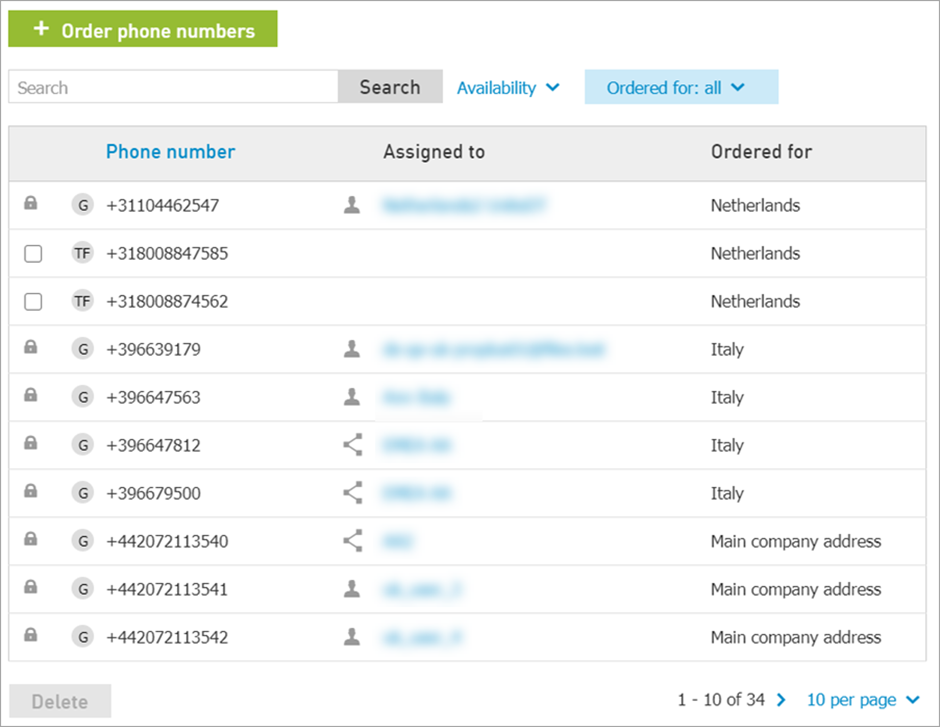
Types of phone numbers will be Geographic (Local) number, Non-Geographic (National) number, Toll-Free (Free Phone) number.
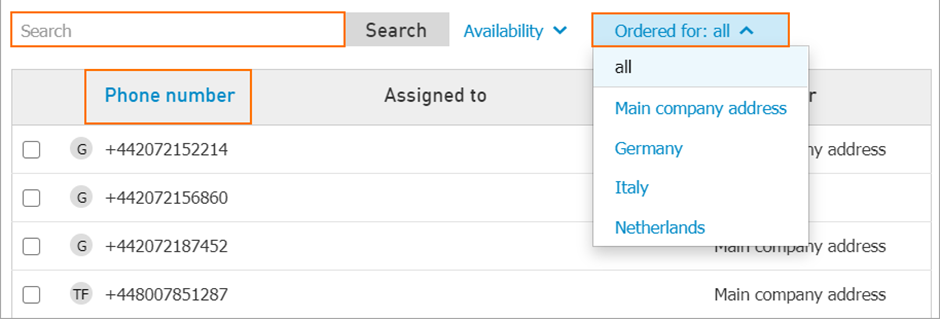
You can search the number by Object Name or a part of a number, sort the number list by Phone number column and apply the Ordered for filter to see numbers ordered for certain locations
Adding new or deleting unnecessary phone numbers
You can always add new phone numbers by navigating to Elevate > Phone Numbers tab and clicking Order Phone Numbers.
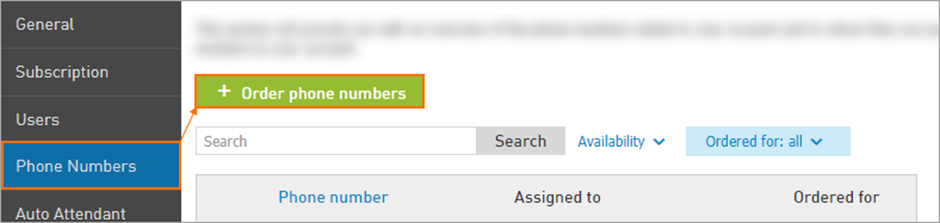
A new tab will open, prompting you to specify Country, Number Type, Location, Area Code, Number Quantity and Number Selection.
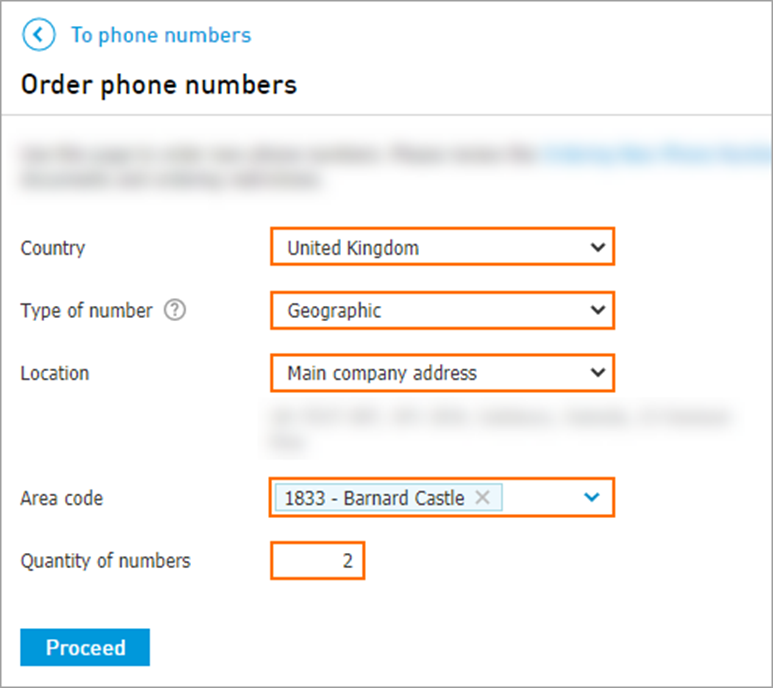
Country
This will automatically be filled in based on the Location you selected.
Type of Number
Depending on country, options are Geographic (Local), National, and Toll-Free (free phone)
Location: this will default to the Main Company Address. If you have provisioned additional Locations, these will be available to select in the drop down.
Some countries including Netherlands and Germany require that Geographic numbers can only be used with a service address that is local to the phone number. This is for emergency services.
Some countries including Australia allow any in-country address to be provisioned to a Geographic number for emergency services, but require the number to be local to the address for regulatory purposes.
If you are planning to use the new phone number at a different address then you have provisioned for the Location, please provision the new Location address first, then request the phone number(s) for that new location. This will help you insure you have the correct emergency services address provisioned.
Numbers will be loaded to the Location you specify in this inventory request. Due to regulatory requirements, numbers cannot be moved to other locations later.
Note: You can, however, update the address on the Location for all numbers at that Location.
Area Code
Choose the desired area code.
Note: Where multiple area codes exist, we will provision with an alternate local area code if the specified area code is not available.
Quantity of Numbers
Specify how many new numbers you would like for this request. If you would need 10 numbers of one area code and 5 of another - please create separate orders.
Number Selection
Ordering Individual Numbers
In countries where we support individual number ordering only (no number block handling), you will be presented with the below options. Choose one from these options in the dropdown. Default is the fastest available option.
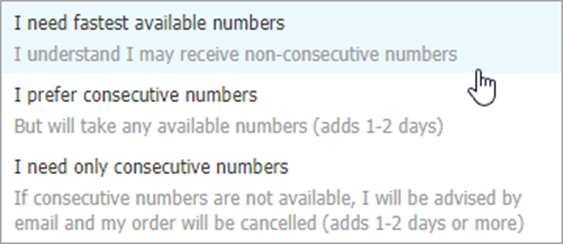
“I need the fastest available numbers; I understand I may receive non-consecutive numbers”
We recommend this option for most requests.
Typically you will receive the new numbers either same day or within 1-2 business days.
“I prefer consecutive numbers; But I will take any available numbers (adds 1-2 days)”
This option applies to orders of 10 or more numbers.
We will request consecutive but will complete the request for you with whatever numbers we get back from our carrier even if non-sequential.
Numbers will be treated as individual numbers in our systems even if a consecutive group of numbers is returned.
In countries where block ordering and handling is available, use block ordering instead of individual number ordering.
“I need only consecutive numbers; If consecutive numbers are not available, I will be advised by email and my order will be cancelled (adds 1-2 days or more)”
This option typically applies to orders of 100 or more numbers
We will only complete this request if our carrier has a 100 consecutive number block available in the desired area code.
Numbers will be treated as individual numbers in our systems even if a consecutive group of numbers is returned.
In countries where block ordering and handling is available, use block ordering instead of individual number ordering.
Ordering Number Blocks
Where Number Block Handling is available, you will first be able to choose whether you need consecutive numbers, then you will choose whether you want to purchase individual numbers or as blocks. Defaults are as follows:
If you choose I do not need consecutive numbers – Individual number option will be preselected
If you choose I need consecutive numbers – In blocks number options will be preselected
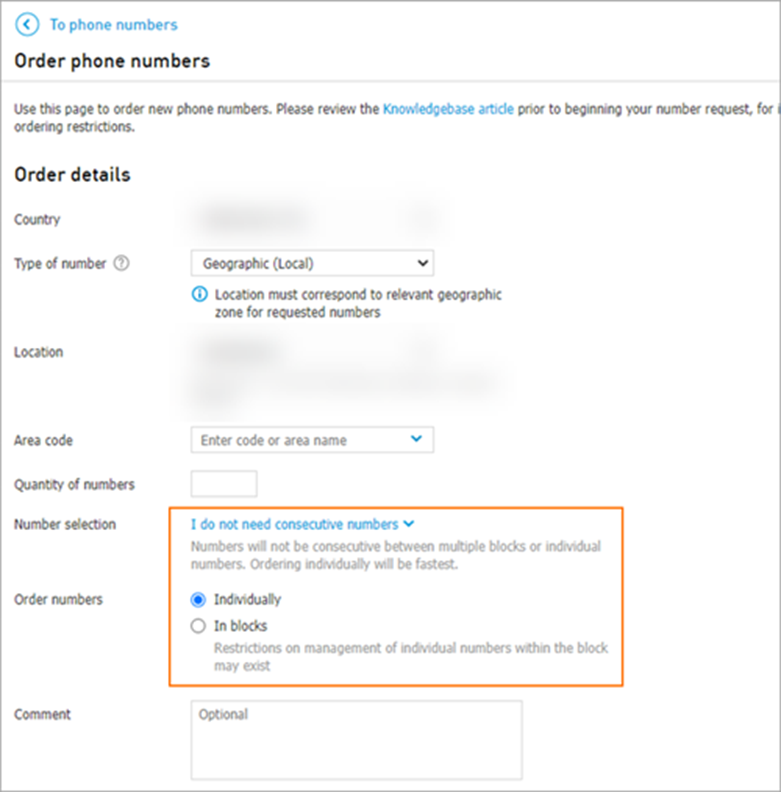
Note: While possible, we strongly recommend you DO NOT choose the following option combination: I need consecutive numbers – Individual. If you need consecutive numbers, you should order them as blocks and have them handled as blocks due to carrier number handling policies.
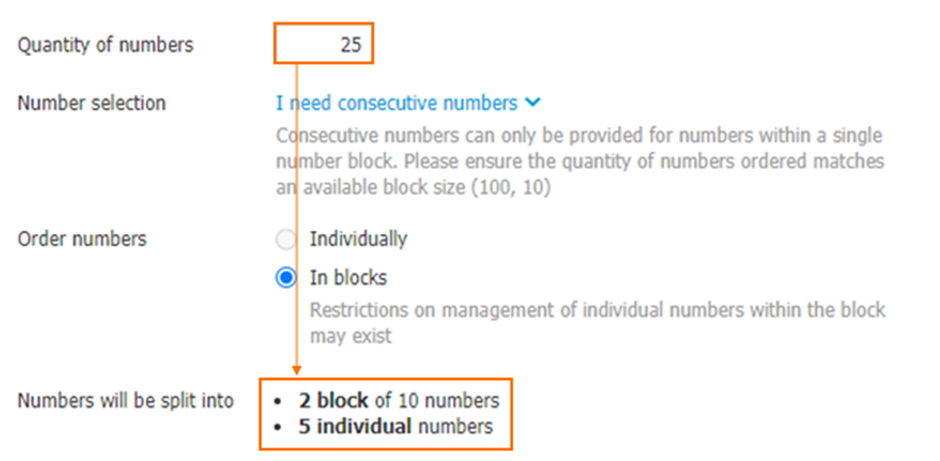
Where blocks have been selected, you will then see how your order will be arranged into blocks. If the standard block size is 10 or 100, and you order a quantity of numbers in between, your order will be fulfilled with as many blocks of 10 or 100 as possible, then remaining TNs will be provided as individual numbers. There is no guarantee that multiple blocks of 10 or 100 will be consecutive to each other; the TNs are only guaranteed to be sequential within each block.
Comment
If there is anything you want us to know about the order or about the regulatory documents provided, note it here. Examples may include:
“Demo/test order. Do not fulfill”
“Document linking the person whose ID we provided to the Registered Business is attached for regulatory purposes”
Contact Information
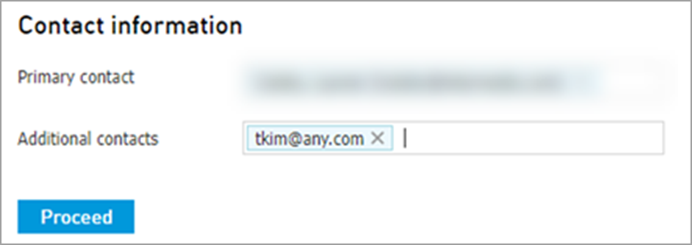
You will then be asked to specific the primary and any additional contacts you want notified regarding status of the request. The primary contact must be an authorized user on the customer’s account. Additional contacts may be any email address.
Note: Where requests are fulfilled automatically, no emails are sent on completion of the request. For all requests, you may click “View Request Status” anytime on the Phone Numbers tab to see status of the order, and order details including new phone numbers.
Completing the Order
After the basic information is put in, you will be prompted for additional information and/or documentation based on the country the numbers are being ordered for – please see this article to see what will be required to order new numbers in your country.
Once all the required fields are filled in – click Submit Order and you will be shown a confirmation message stating that your request is being processed.
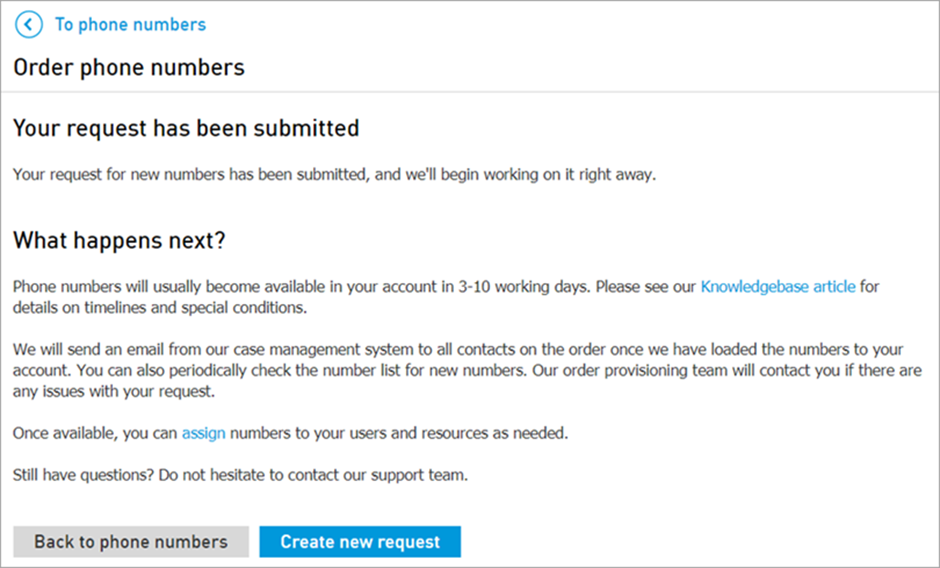
Note: Number requests for Fastest available numbers in the United Kingdom or Australia have a different order process, and will be shown different next steps for completion of the order.
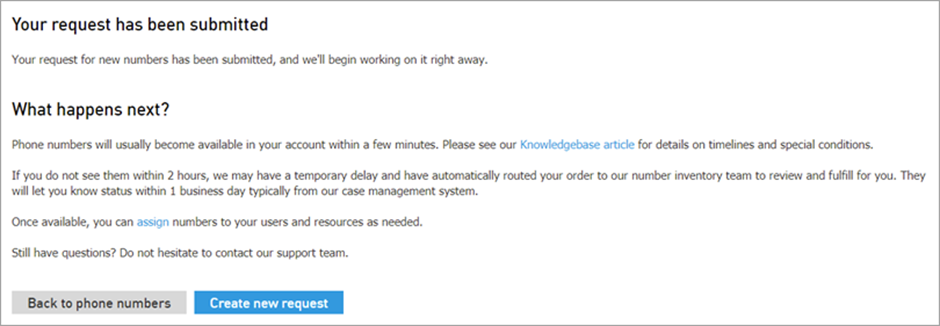
From here you can start up a new request for another location or go back to managing the phone numbers that are already provisioned to the account.
Delete unnecessary numbers
Individual Numbers
Individual numbers can be deleted if in unassigned state.

Find the unnecessary number, choose it and click Delete button.
Number Blocks
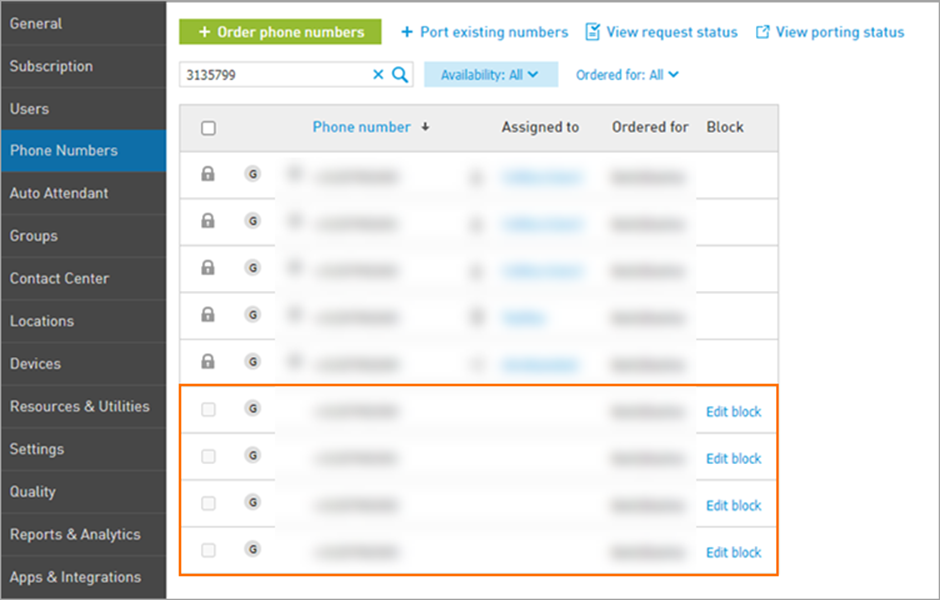
Where numbers are handled as number blocks in our systems, you will not be able to delete them individually and instead will see an option to Edit Block next to each number in the block:
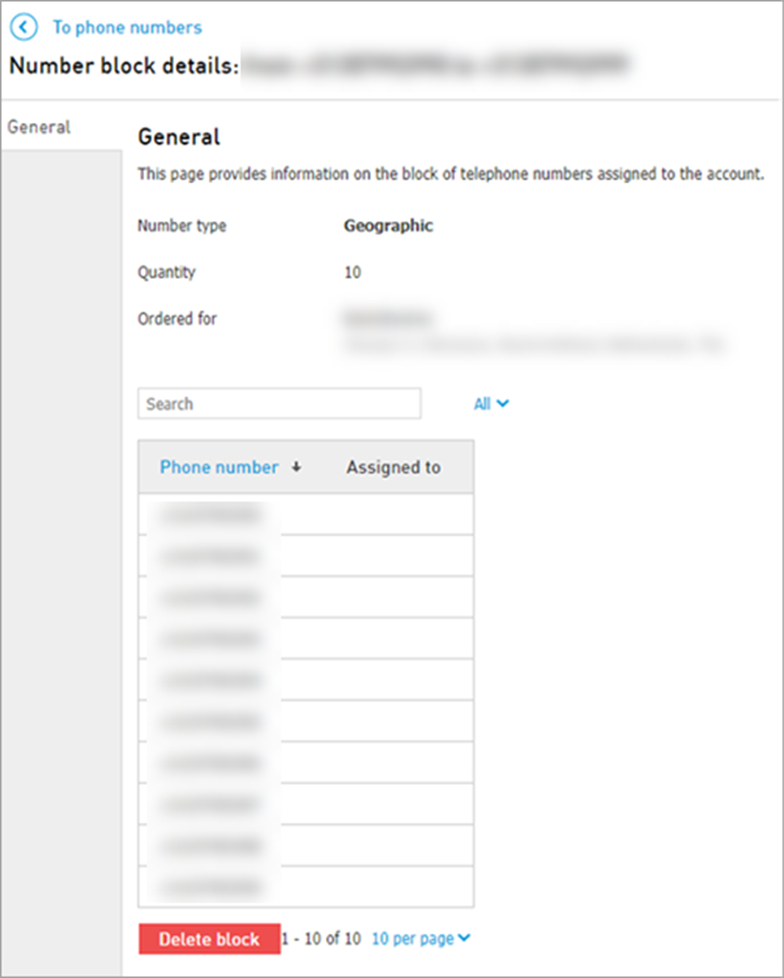
Clicking on Edit Block brings up a new screen where you can choose to delete the entire block. You cannot delete a block until all associated numbers have been unassigned from users and services.
Manage numbers for Users
If you need to assign or swap users' primary number or add an additional number do the following.
Important: for Users, Fax Resources and Resources, only Geographic (Local) numbers from the same country will be available as primary numbers. Any number can be selected as primary for Auto Attendants and Hunt Groups, and as additional - for any object.
Navigate to Elevate > Users.
Click on the User's Name that you wish to edit.
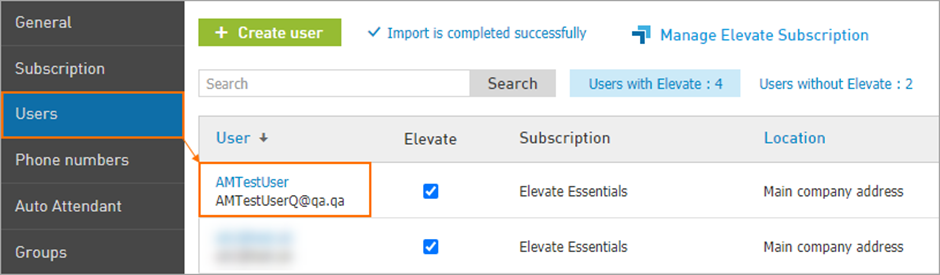
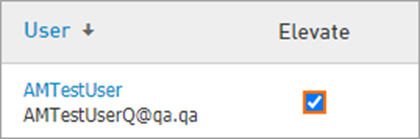
To assign a primary number for a new user without a subscription, check the box under Elevate.
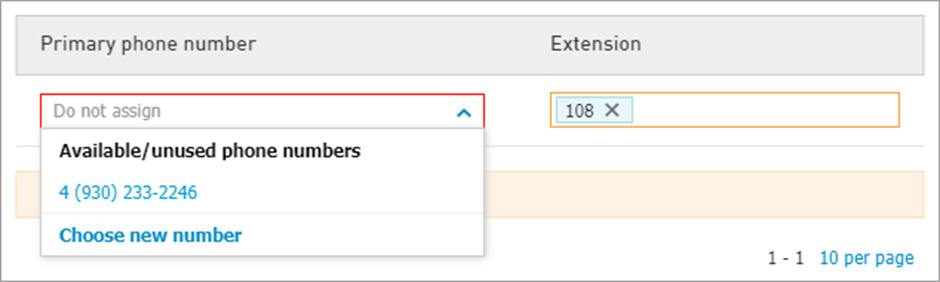
After that, select an unassigned number from User’s geographical location and specify an extension.
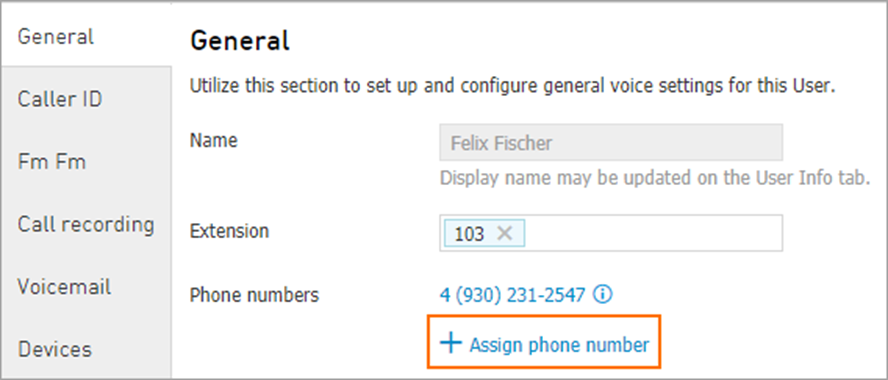
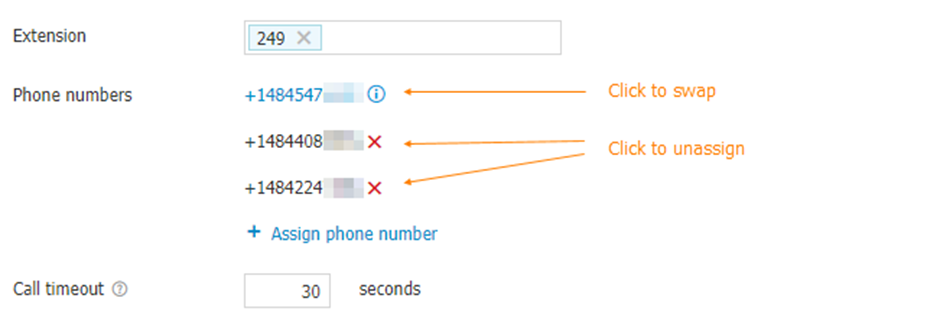
Additional number can be assigned by clicking the Assign phone number button when the primary number is already assigned.
To swap the primary number click on the current primary number, choose the desired available number and click Swap button.
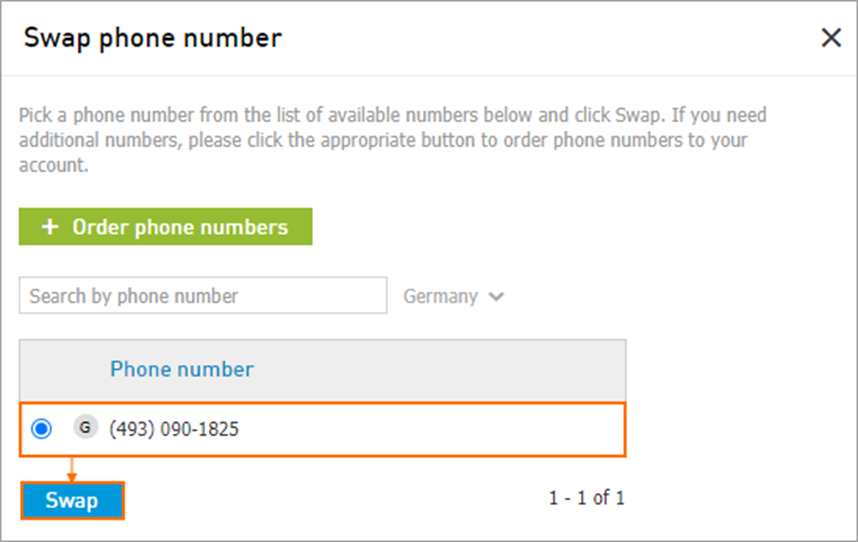
Important: There might be a propagation time of 30-60 minutes before it starts working after assigning the number.
Note: Users must have at least 1 phone number assigned. Additional numbers can be unassigned by clicking on the red X next to the number. Primary number can only be swapped.
Manage numbers for Auto-Attendants
To manage numbers for a specific Auto-Attendant:
Navigate to Services > Elevate > Auto-Attendant.
Click on the Auto Attendant's Name that you wish to edit.
Click the Settings button in the top-right corner.
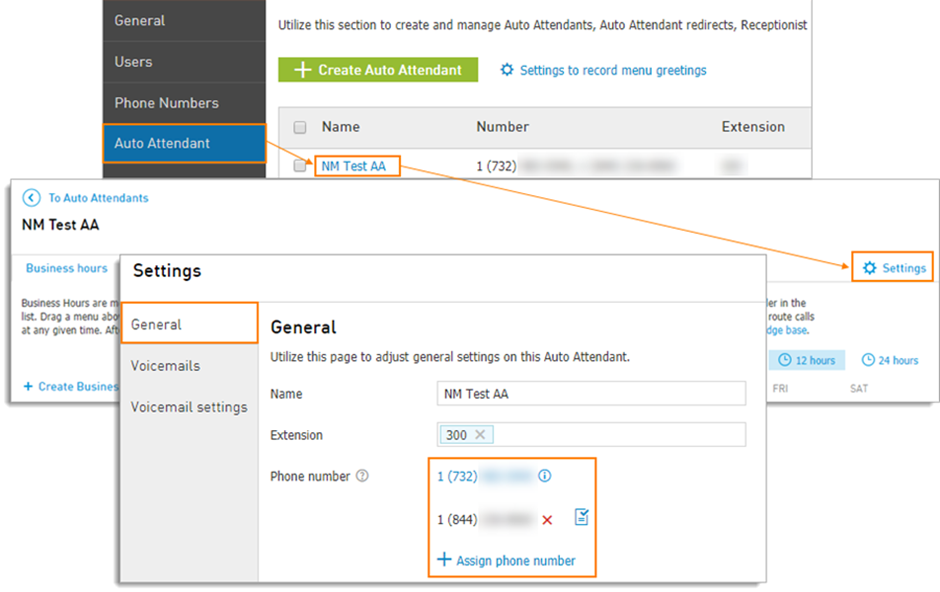
The steps of assigning additional numbers and swapping the primary number are identical to steps described in Users paragraph.
Important: There might be a propagation time of 30-60 minutes before it starts working after assigning the number.
Manage numbers for Hunt Groups
To assign numbers for Hunt Group:
Navigate to Services > Elevate > Groups
Click on the group's Name that you wish to edit.
Click Assign phone number link.
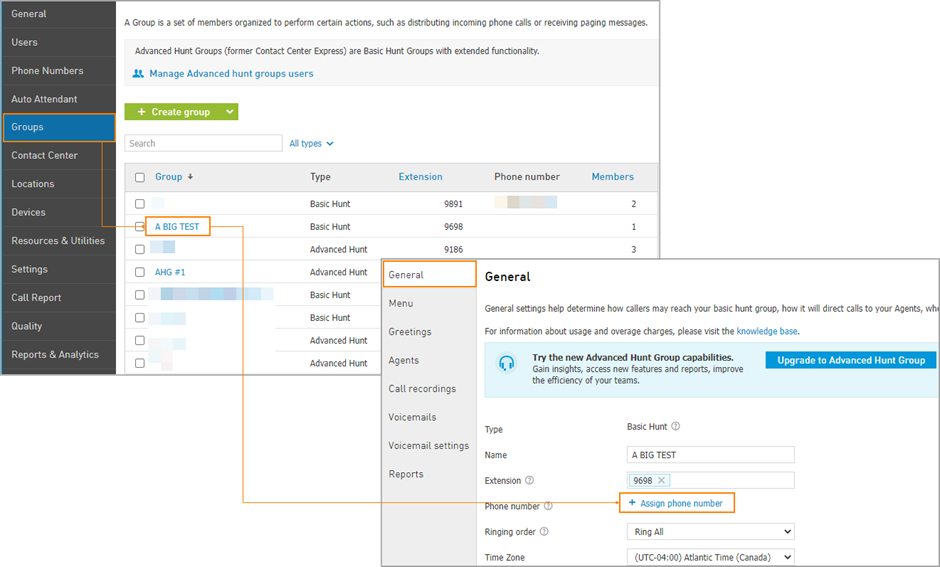
Note: Hunt Group could have multiple numbers assigned
Important: There might be a propagation time of 30-60 minutes before it starts working after assigning the number.