Mass device assignment
If you would like to assign the devices in mass, please follow the steps below:
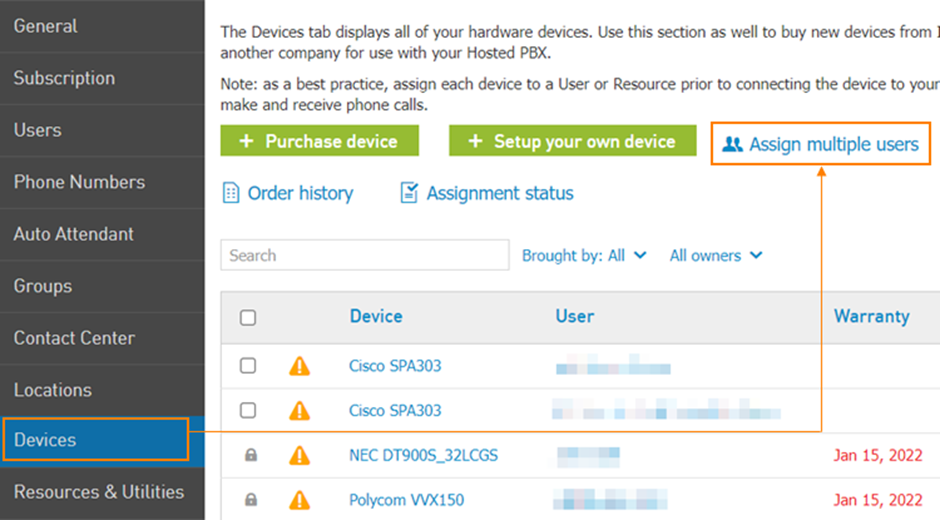
Go to Services > Elevate > Devices > Assign multiple users:
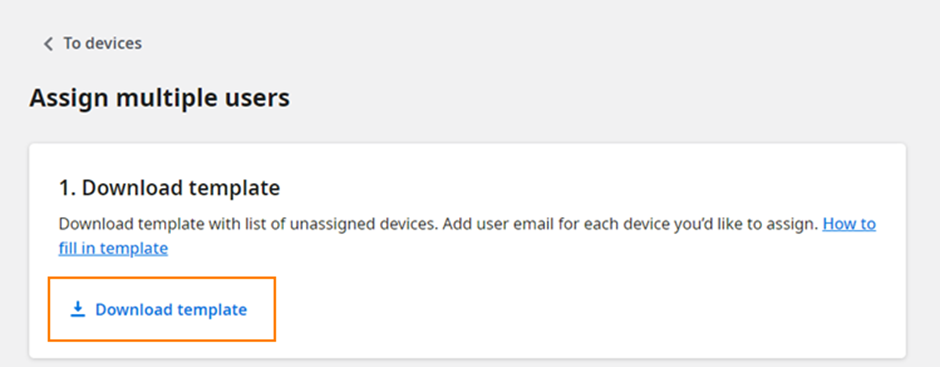
Download the .csv template file;
Fill out the template keeping in mind the following guidelines:
Template is prefilled with devices that can be assigned to users: desk phones and handsets linked to phone base.
Device can be assigned to users only (assigning resources is not supported)
MAC address is required for desk phone assignment and Serial Number is required for handset assignment (as handsets don’t have MAC)
Device model, Warranty fields can be blank, they are optional.
User email field is also required, if you don’t want to assign device to user, line must be removed from the .csv
If MAC or Serial Number contain only numbers, there can be an issue with opening csv file in excel – Number will be shown in format like “1.11E+11”. Saving file as is will cause problems, as this format doesn’t allow to define which MAC it is. To avoid issues fields with such numbers needs to be transformed to “Fraction” format. To check that the file as saved correctly you can open it in another program, for example in Notepad.
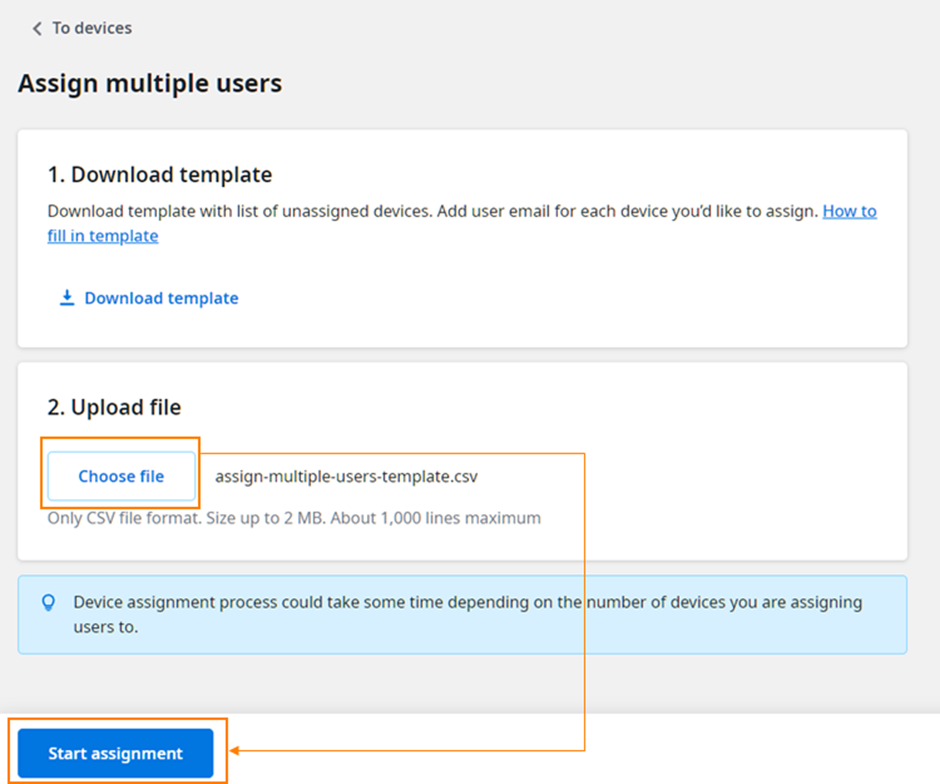
Upload the filled out .csv template file.
Click Start assignment
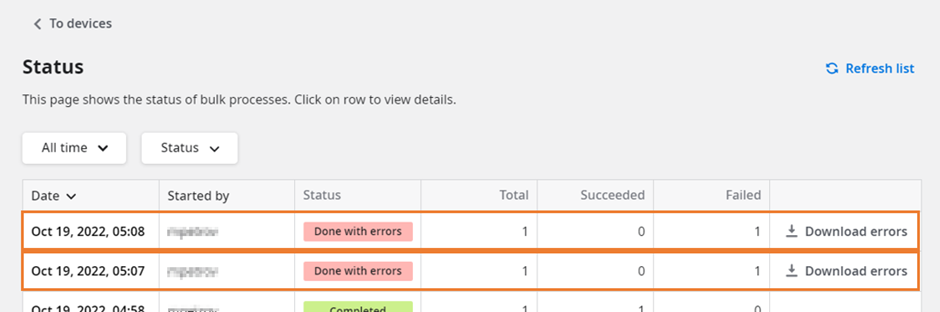
The assignment process will start, and you will be brought to the Assignment status page. You can click on the Refresh list button to update the status of the assignment. By clicking on the line with the assignment operation, you can access the page with Details and review the status of the assignment per device:
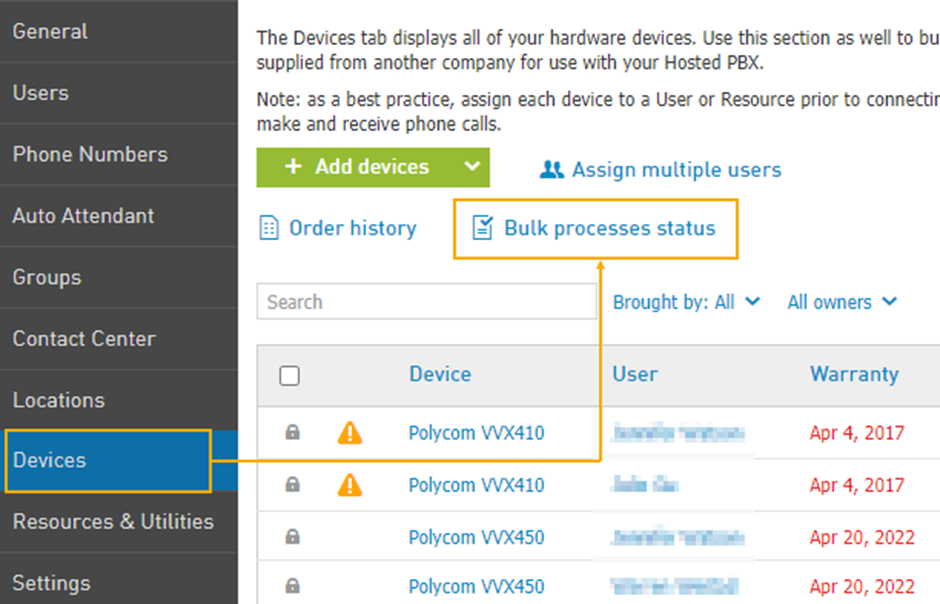
If the process is going to take long time and you need to check on it at a later time you have accidently closed this page, or you would like to review the assignment history on the account, you can always do so by navigating to Services > Elevate > Devices > Bulk processes status:
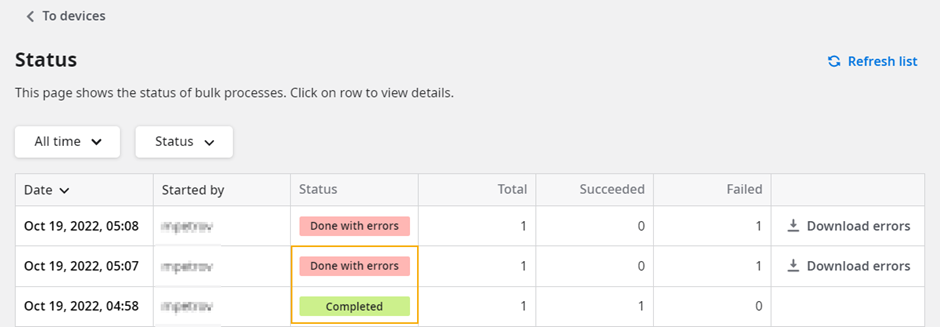
Once the assignment process is complete, you will be presented with the results. A successful assignment will be marked with a Completed status, while unsuccessful (or partially successful) will be marked as Done with errors. You can review the detailed results for a row by clicking anywhere on that row. To assist in correcting errors, you can click Download errors which will download a csv file with all failed lines, so that you can correct the mistakes directly in that csv file and then start another operation with this corrected data.