Meetings
Meeting Features
Integrated Audio Conferencing: includes a conference call number and PIN codes, so participants can join by phone or choose computer audio.
HD Video Conferencing: 720p HD Video Conferencing with up to 12 webcams
Screen Sharing & MP4 Playback
Take Meeting Notes: notes are emailed to all participants at the end of the meeting
Lock meetings so no new participants can join (available to Host)
Meeting Recording (available for Pro plans only)
Virtual Assistant: automatically transcribe your meetings with our AI
Screen Annotation: write on each other’s screens to highlight talk points
Calendar integration: integrate meetings invites added to your calendar with Online Meeting app
Note: to schedule a meeting for a future date you need to log in to the Online Meeting website.
Launch Meeting
There are two ways to start a meeting:
To start a meeting with external attendees, navigate to the Meeting tab. Provide potential attendees with the meeting information: meeting URL, phone number and PIN.
Click Start new meeting. A meeting will be opened in a new window.You may invite chat members to a meeting using the Meet Now button. Read the Knowledge Base article on Elevate Desktop App: Chat Feature Overview for detailed instructions.
Note: this option allows you to start meeting with other Users on your account who have Elevate enabled.
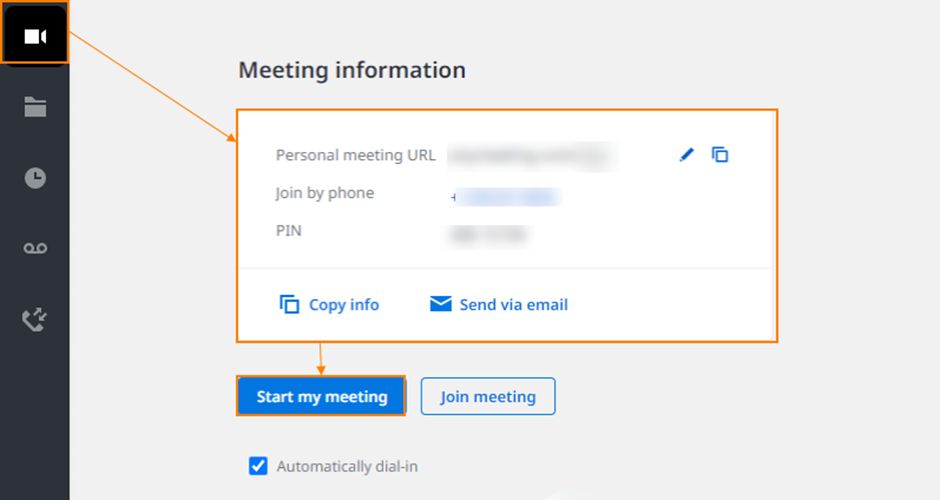
Note: if your interface differs from the one above, you are using a previous app version. Read the Knowledge Base article on Elevate Desktop App: How To Upgrade App for more information.
From the Meeting tab, the following features are available:
Edit your Meeting URL: personalised URL makes it easy for others to join your meeting.
Copy info: copies your meeting URL and dial-in information to paste into an email, chat or other messenger.
Send via email button automatically creates an email in your desktop mail client with Meeting info.
Note: if you try to start a new meeting while an active meeting is already opened via Web Browser or Online Meeting Desktop Application, you will get the following error message: This email is already in use. Please make sure you are not already logged in to a meeting.
Once the meeting is initiated you will be provided with Dial-In information for the conference bridge.
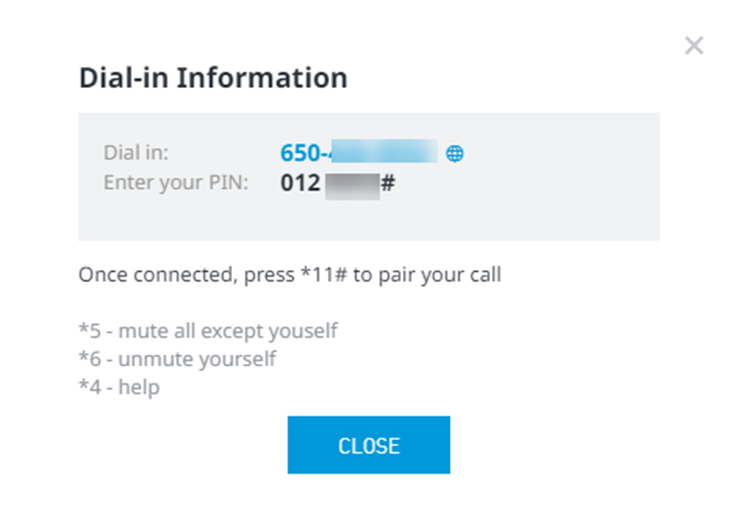
Once you have entered your Audio PIN to pair, this window will close automatically.
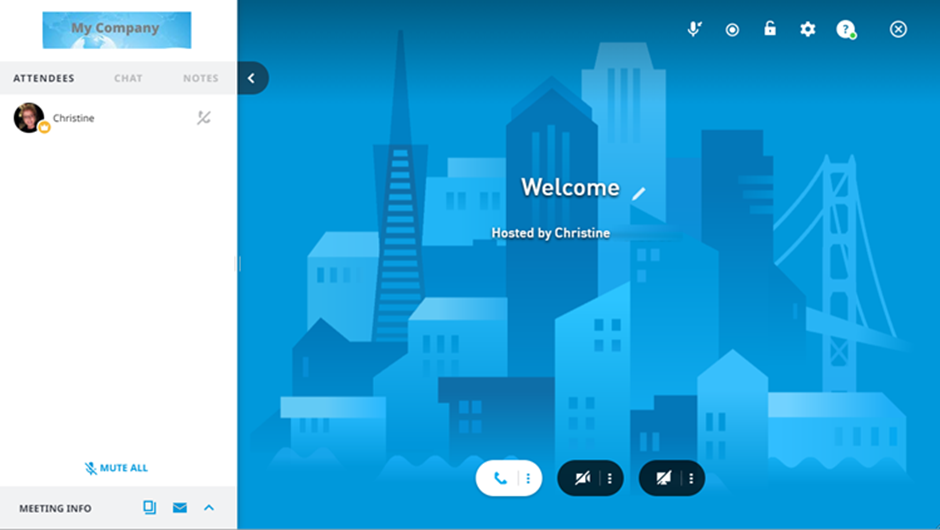
To be automatically connected to the conference bridge when starting or joining a Meeting from Elevate desktop application:
Click on Meetings tab on the left
Check the box for Automatically dial-in.
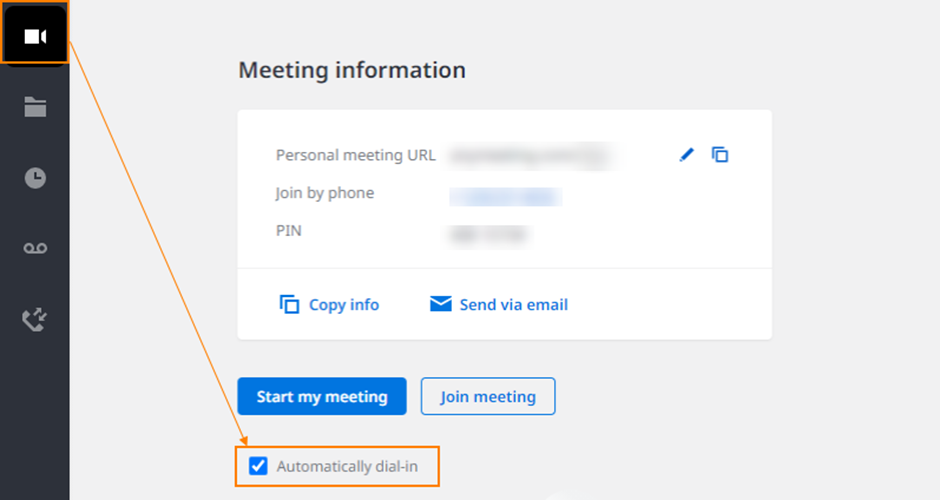
When Automatically dial-in is enabled, the conference bridge number and PIN will be automatically dialled from the Elevate desktop application.
Note: if there is an active Elevate call on your phone, automatic dial-in will not be able to dial you into the bridge.
Meeting History
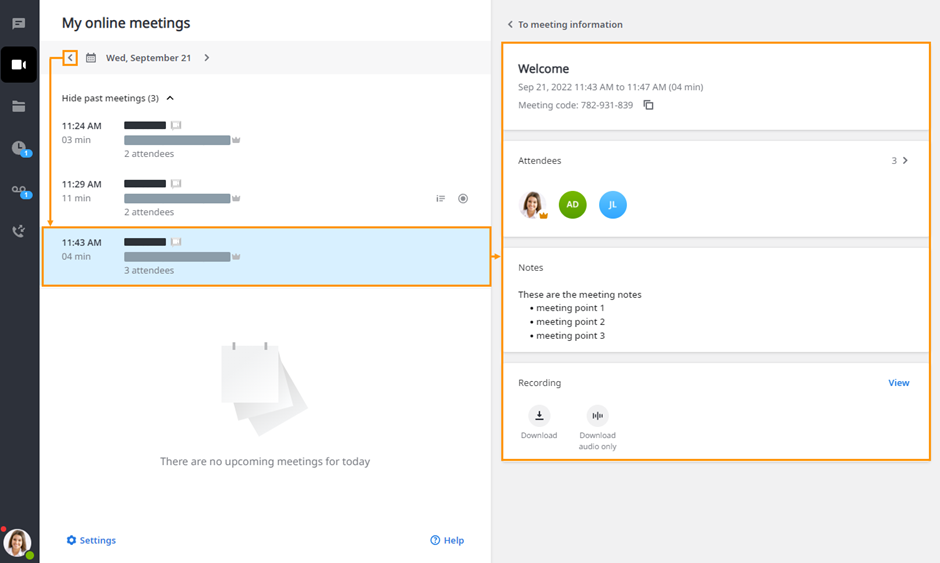
Past meetings can be accessed via the back arrow in the navigation panel or via the calendar. Clicking a specific past meeting will open meeting details on the right side.
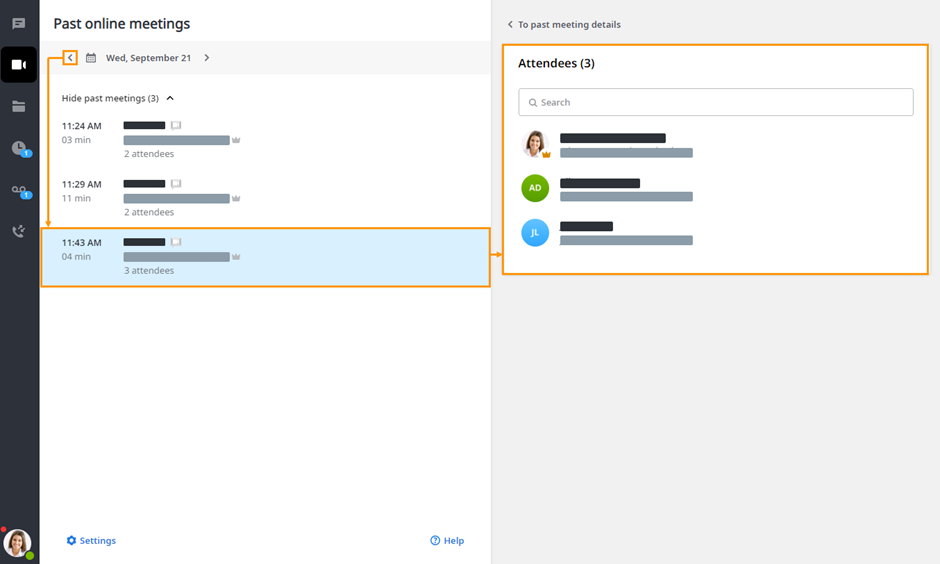
In the meeting details you can:
Review attendees
Review or copy notes
View, download, or copy the link to the meeting recording