
Advanced Hunt Group Presence
Users can view Advanced Hunt Group presence details in Elevate Desktop and mobile application. Apart from the Advanced Hunt Group's name, phone number, and email, it will show several additional stats.
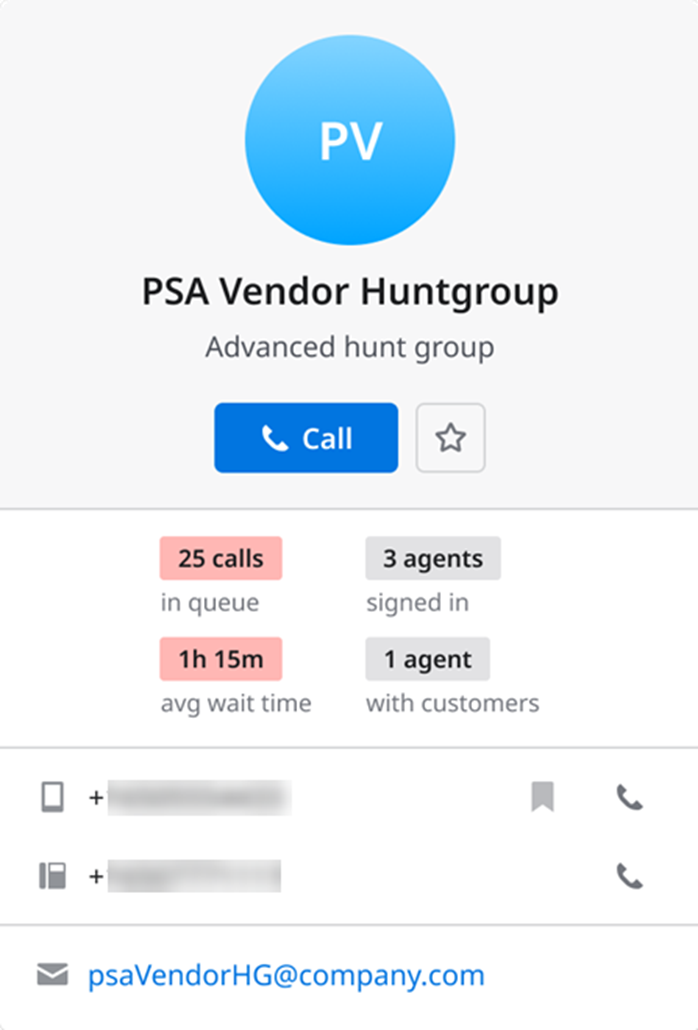
Number of calls in queue
Green: number of calls in the queue is less than 3/4 of the max number of callers on hold;
Yellow: number of calls on hold is more or equal to 3/4 of the max number of callers on hold;
Red: number of calls on hold is equal to the max number of callers on hold.
To learn how to set up max callers on hold parameter, read the Managing Advanced Hunt Groups section of the article.
Number of agents signed in.
Average caller's wait time
Green: average time on hold is less than the time specified in SLA (Service Level Agreement);
Yellow: average time on hold is more or equal to the time specified in SLA;
Red: average time on hold is twice the time specified in SLA.
Number of agents currently on the call.
Note: SLA time can be configured in CONTROL PANEL > Elevate > Reports & Analytics > Advanced Hunt Groups > Select an Advanced Hunt Group and click the Settings icon in the right upper corner. Read the Advanced Hunt Group Reports article for more instructions.
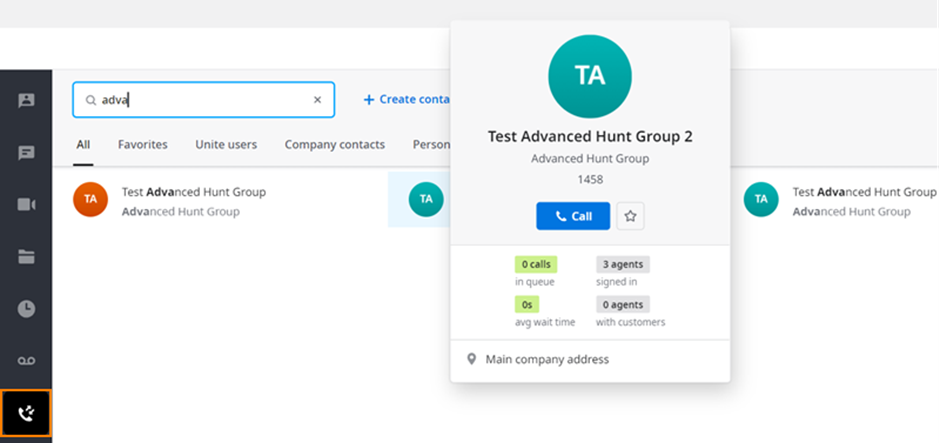
To view Advanced Hunt Group's presence in Elevate Desktop application, go to the Calling tab, look up Advanced Hunt Group and select it. The presence stats view be presented in the Hunt Group's contact card.
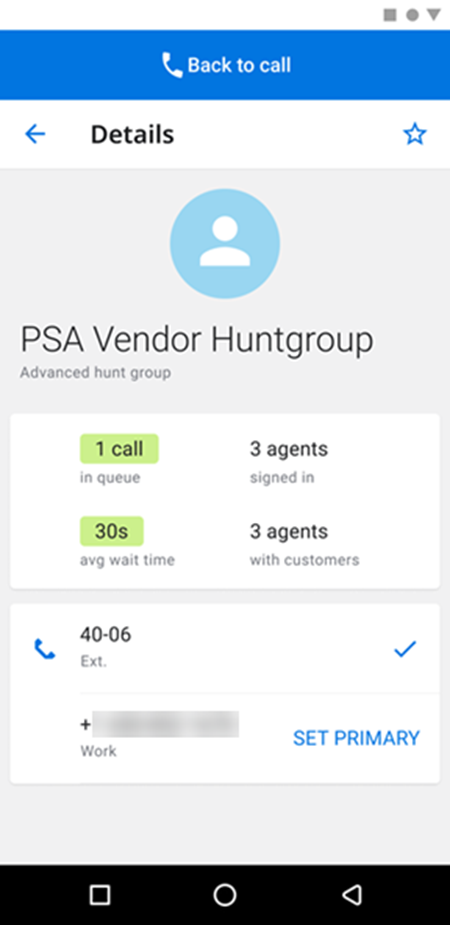
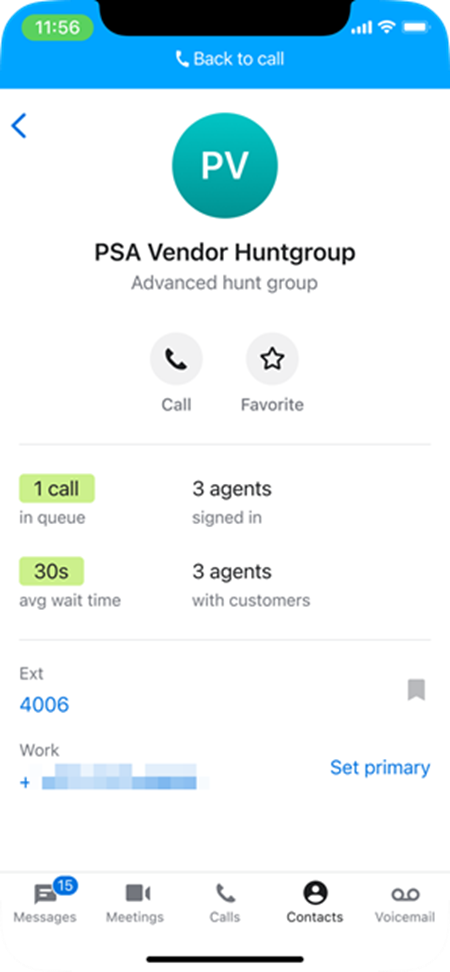
To view Advanced Hunt Group's presence in Elevate mobile application, go to the Contacts tab, look up Advanced Hunt Group, and select it. The presence stats view will be presented in the Hunt Group's contact card.
Android | iOS |
 |  |