Assign log in & out buttons to a Elevate provisioned device
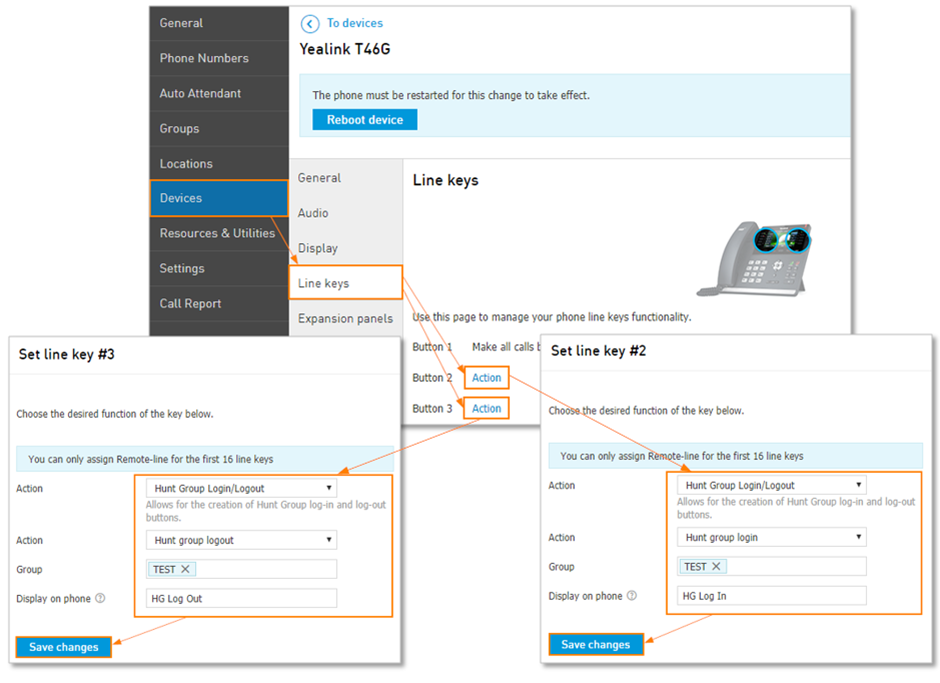
To assign log in & out buttons to a Elevate provisioned device:
Navigate to the Devices tab and click the phone you wish to edit.
Click the Line keys settings tab.
Click Action next to the button choice.
Select Work with Hunt Groups.
Select the Action, either Hunt Group login or Hunt Group log out.
Select the Hunt Group the agent will log in our out of.
Adjust the Display on phone to an identifying name that will show next to the button on the device.
Make sure to also assign a log out button to another action button.