
Auto Attendant Menus Priority
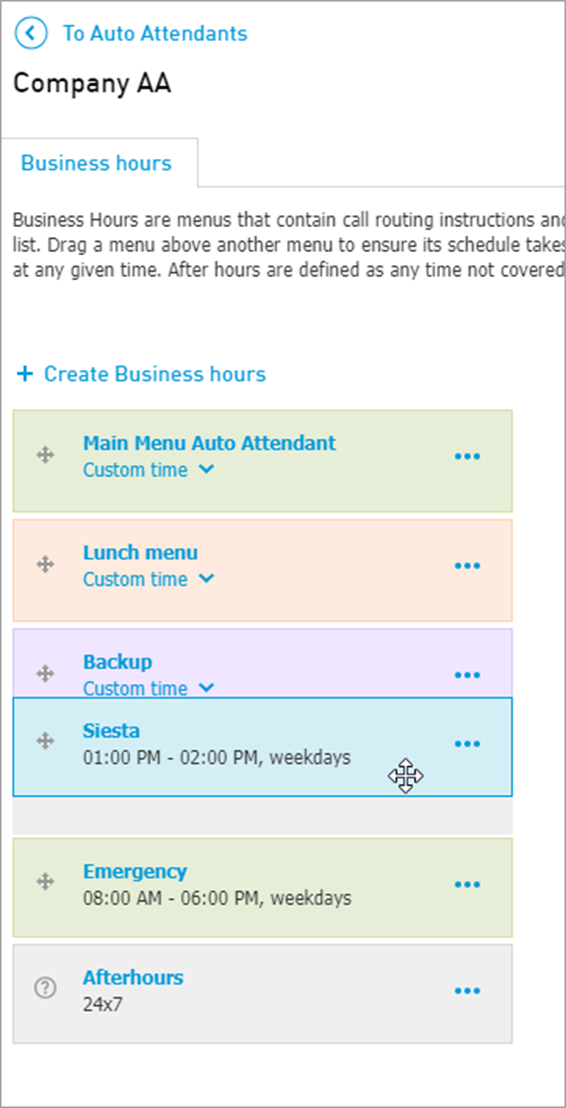
Elevate Auto Attendant allows you to specify the menus priority.
Example: we have a Business Hours menu that is active from 10 am to 5 pm, a Lunch menu that is active from 2 pm to 5 pm, and an Evening menu that should take calls from 4 pm to 5 pm.
If the Business Hours menu has the highest priority, it will take all calls in between 10 am and 5 pm. However, if the Evening menu is the first in the list, all calls in between 4 pm – 5 pm will be routed according to the Evening menu options. Or, if the Lunch menu is the top one, it will be prioritised for taking calls from 2 pm to 5 pm.
The look of the schedule will differ depending on what menus are enabled and what is their priority. You can also switch in between 12 and 24 hours view.
To change the menus priority, go to CONTROL PANEL > Services > Elevate > Auto Attendant > click the Auto Attendant name > drag and drop the menus in the desired order.
Note: the default priority can be temporary overridden for Holidays.