
Events
The Events feature allows creating pre-planned events that override the usual schedule. These menus do not repeat weekly. Instead, they reoccur on the monthly/yearly basis.
Events have the same settings and options as the usual menus.
This feature is located under the Events tab of the Auto Attendant.
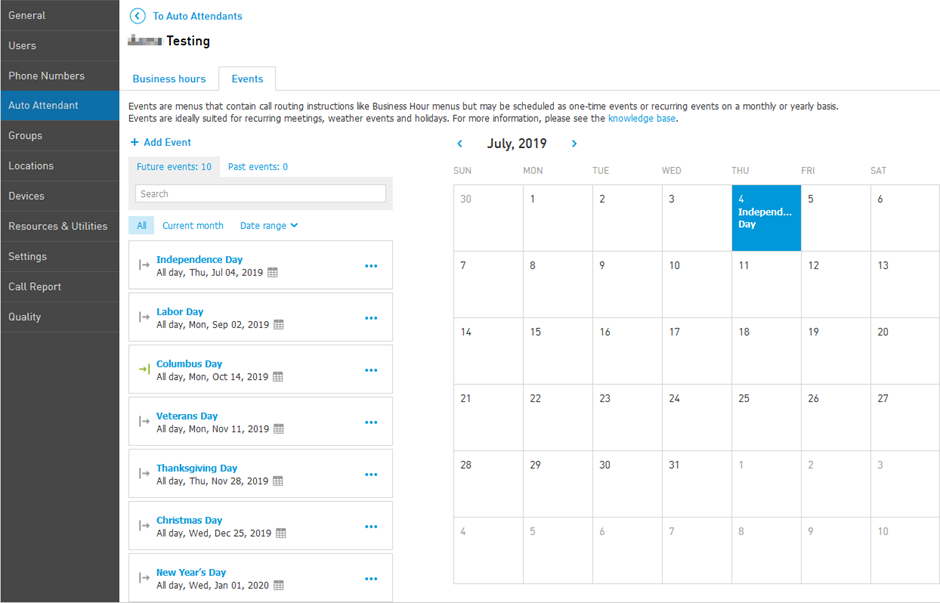
To create a new event, click on Add Event.
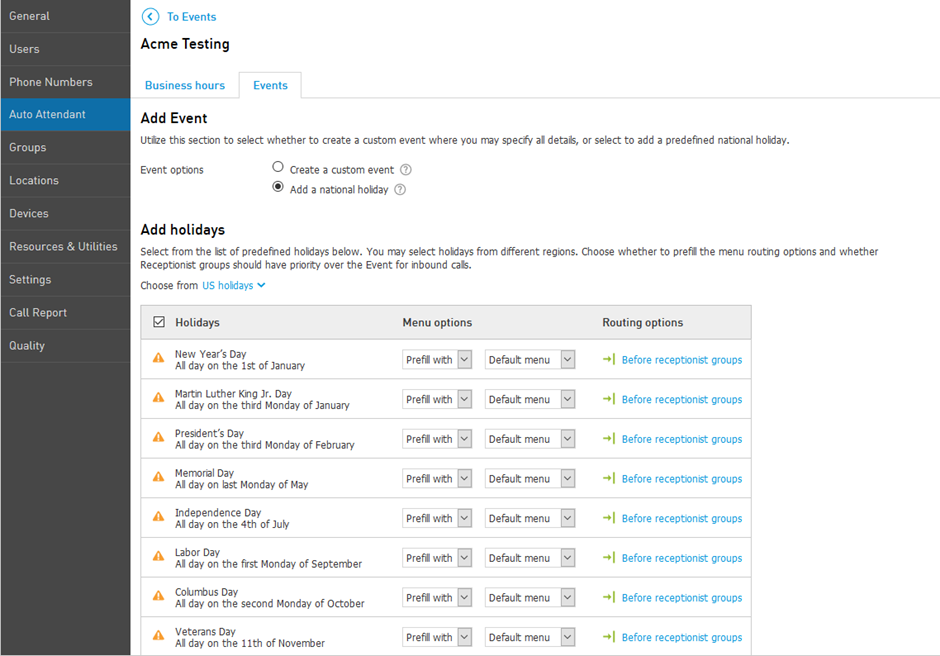
Here you can choose between Adding a National Holiday or Creating a custom event.
Add a National Holiday gives you a quick choice of pre-determined dates. You can choose a specific Prefill Menu and routing options for the receptionist groups.
Create a custom event allows you to set up your own events. You can set up the schedule, routing options for the receptionist groups, and different menu options.
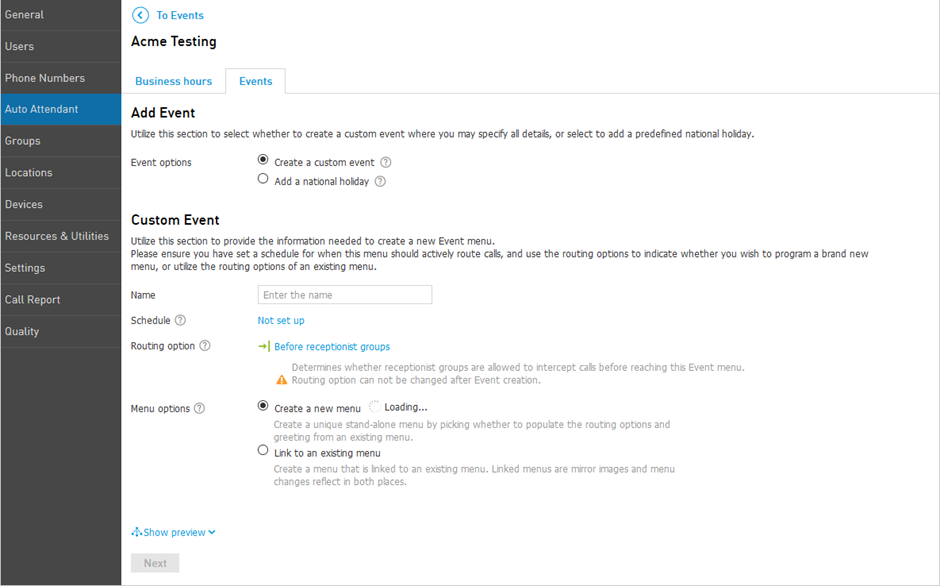
Once the Event is created, it will automatically override the usual schedule during the specified timeframe. Events will always be prioritised over the usual Menus. For receptionist groups, there is a specific setting called Routing Option. You can choose whether to set the Events before or after the Receptionist group. It can be found under the settings of a specific event.
If the Event is set before the Receptionist group, inbound calls are routed directly to the menu and are further routed depending on the Timeout settings of the Event;
If the Event is set after the receptionist group, inbound calls first go to the receptionist groups according to the usual schedule, and then go to the Event.