
Logging In to or Out of a Hunt Group
Once Agents are added to the list, they are able to log into the group from their VoIP device by using the correct dial code, assigning log in & out buttons to their device, or by an administrator using CONTROL PANEL:
How to log in and out of hunt groups directly from the IP phone:
To log in the hunt group dial its extension and add '1'.
*XXX*1 (log into a hunt group with extension XXX).To log out of the hunt group dial its extension and add '0'.
*XXX*0 (log out of a hunt group with extension XXX).
For example, if you need to log into a hunt group with extension 300, dial *300*1. To log out, dial *300*0.
How to log in and out of hunt groups in CONTROL PANEL:
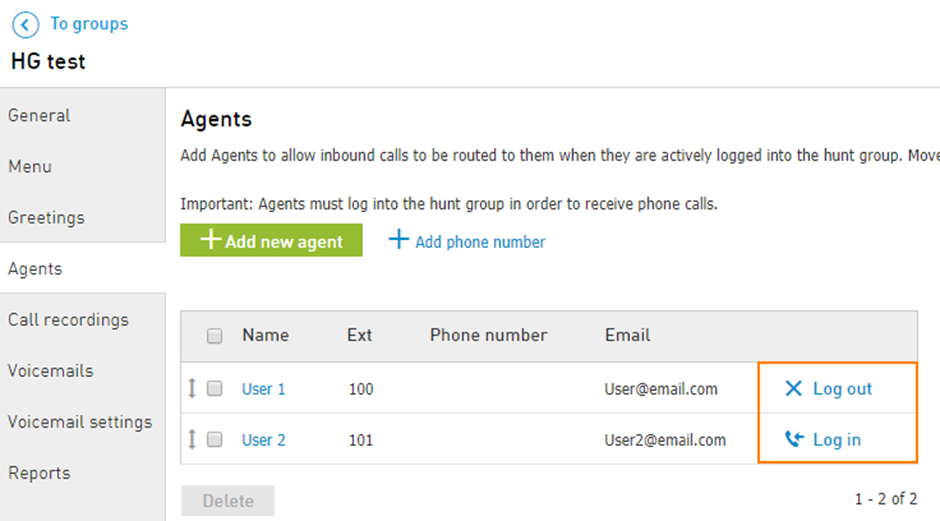
Click on Log in to make an agent available for calls in the Hunt Group.
Click on Log out to make the agent temporarily unavailable for calls to this Hunt Group
How to log in and out of hunt groups in Elevate Desktop App:
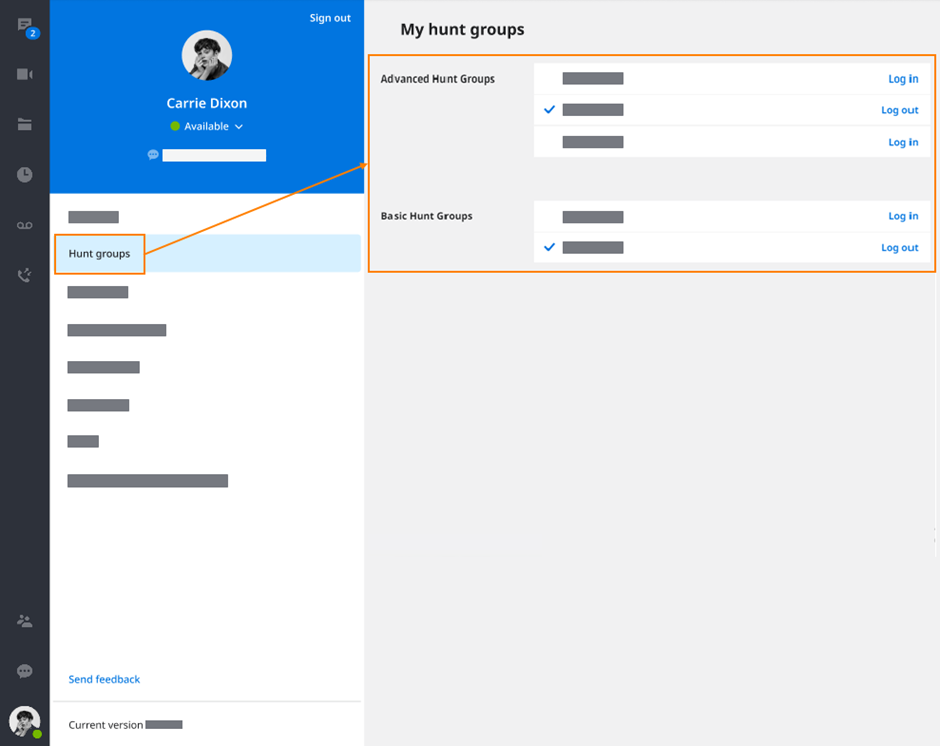
Elevate user who is assigned as an Agent in a Basic or Advanced Hunt Group sees an additional tab in Elevate Settings named Hunt groups. On that tab, an agent can see their assigned hunt groups and can sign in to each group or to sign out from them.
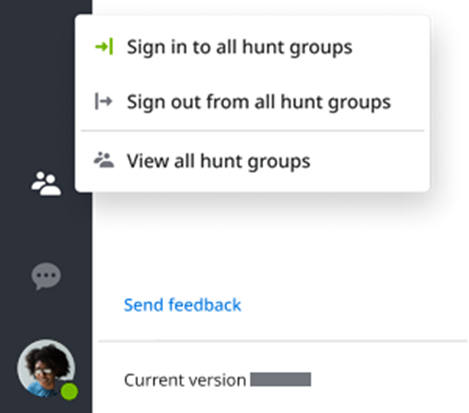
An agent can sign into or sign out from all their assigned hunt groups in bulk using the button on the left panel.
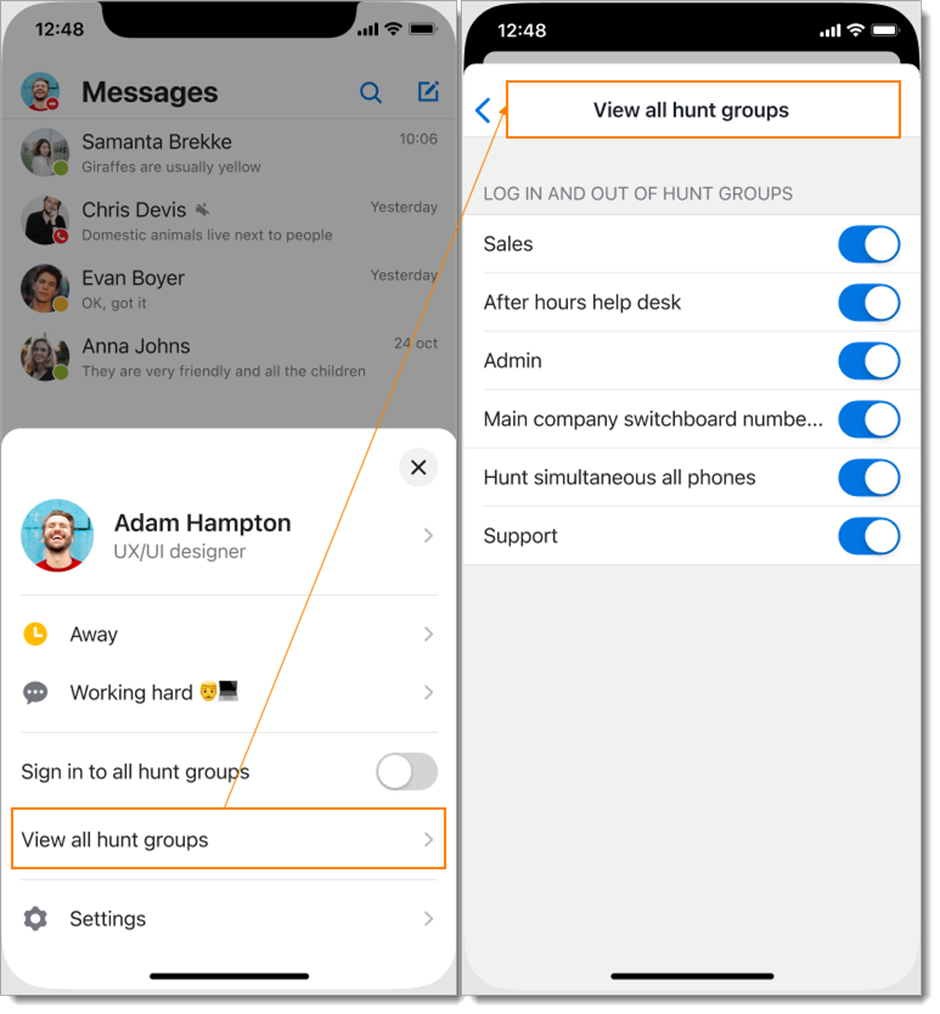
How to log in and out of hunt groups in Elevate Mobile App
iOS:
Navigate to Quick settings menu to Sign in to all hunt groups at once:
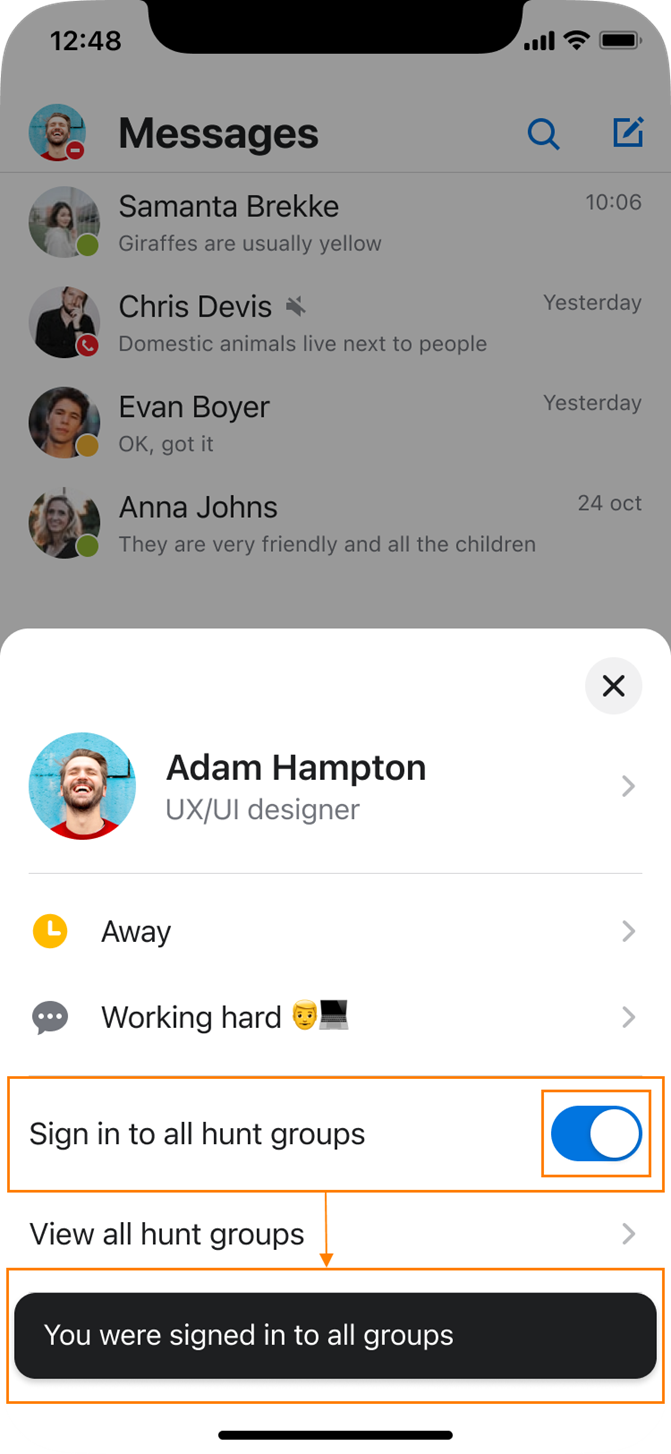
Or, click View all hunt groups to manually log into necessary groups:
Android:
Navigate to Settings > Agent Settings
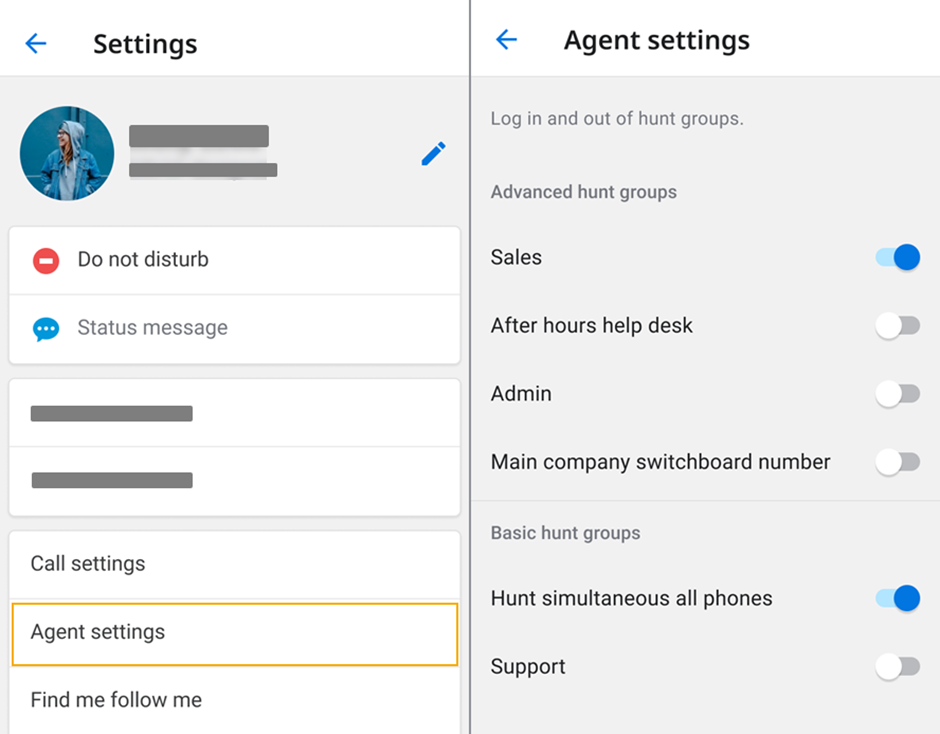
Note: Login to all groups and the list of hunt groups work independently. If the user enables or disables one of the hunt groups toggle, the state of the Sign in to all hunt groups toggle won't be changed.