
Recording And Uploading Greetings
There are two ways to add a greeting for the Auto Attendant. You can upload an already recorded sound file or record it on the go by calling the Auto Attendant's number or extension and pressing *5 followed by PIN when prompted from any device or cell phone.
Note: If you are recording the greeting on the go using your phone, please ensure there is a default greeting uploaded in the corresponding Auto Attendant menu. It is possible to record a new one only with a temporary file being there.
If you have already deleted it and you are recording the greeting via your phone, simply upload any audio file to the menu. It will be replaced with your actual message once you record it.
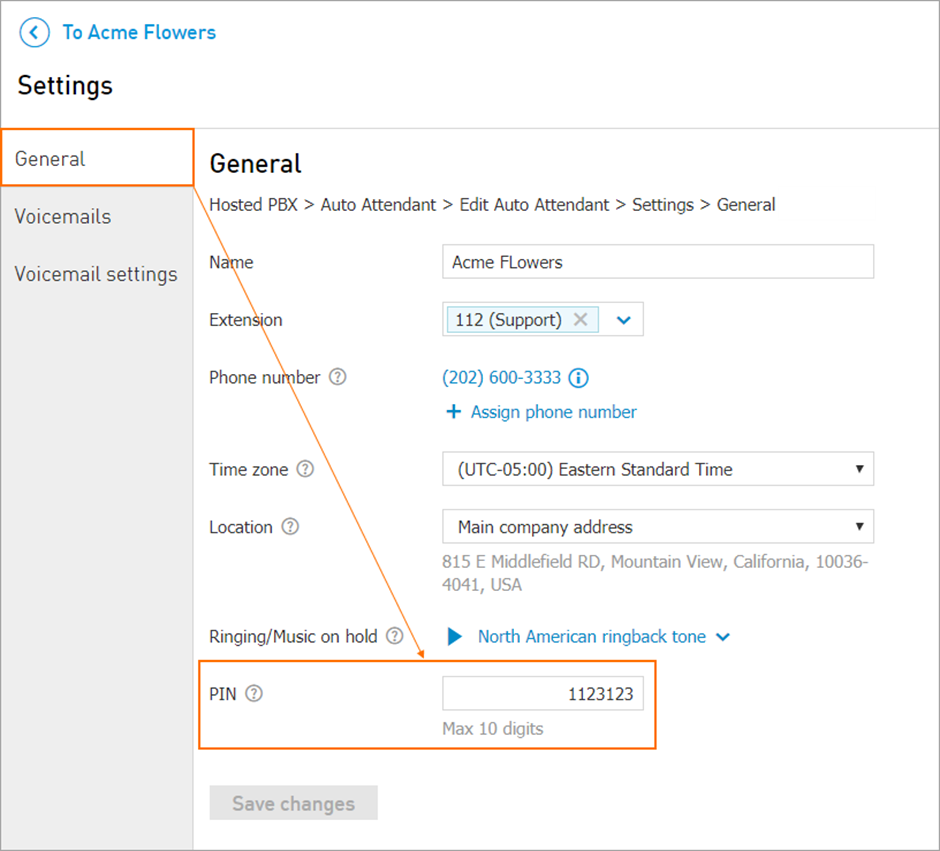
In order to manage Auto Attendant's PIN, once in Auto Attendant tab, click on the Auto Attendant you wish to manage. Go to Settings and the PIN will be at the bottom of the General section.
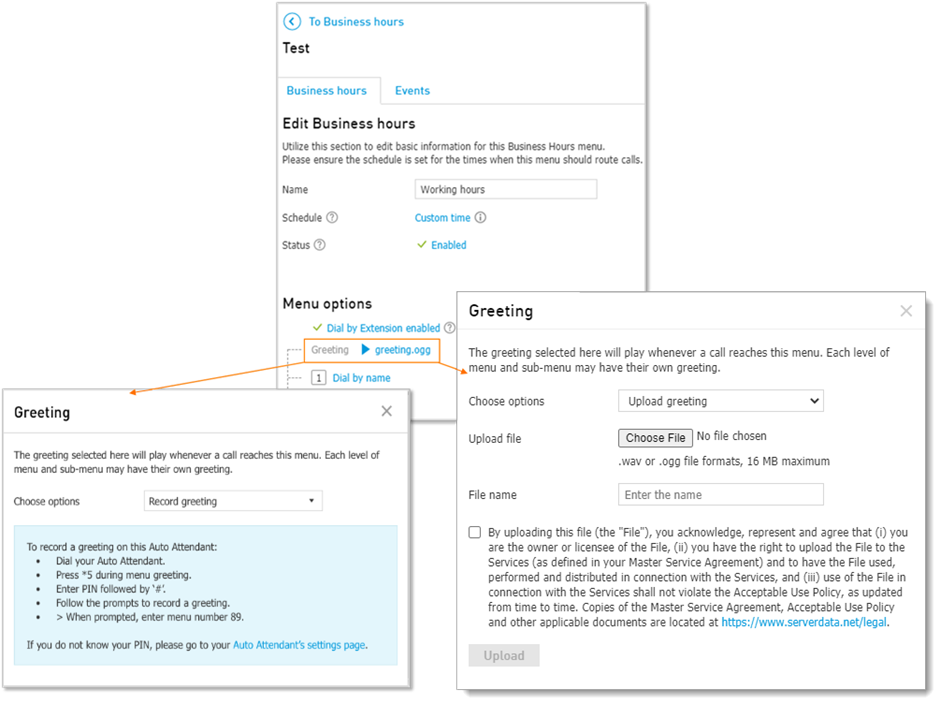
Two main methods are detailed as follows:
Uploading greeting from CONTROL PANEL:
Record and save your greeting using any sound recording program (read the Knowledge Base article on How do I create a *.WAV or *.OGG file for my greeting? for more information). The file must be in WAV or OGG format and cannot be larger than 16 MB.
Then navigate to Services > Elevate > Auto Attendants > click on Auto Attendant Name > Business Hours > click on a menu you wish to change the greeting for.
Under the menu options, click on the current greeting name, then choose file, specify the file name and agree with policies and limitations, then click Upload.
Note: when choosing files to upload, be aware that you are responsible for following copyright regulations and the Company Acceptable Use Policy.
Tips: There is a default greeting for the Auto Attendant, which is erased when you upload your own file. Make sure your greeting explains each option that you have set up, and which key caller needs to press for it. You may also want the greeting to explain that callers can dial an extension at any time.
Recording Greeting Via The Phone:
Dial by Extension has to be enabled in order to be able to record a greeting via the phone. Instructions for recording Auto Attendant greeting via the phone can be found in CONTROL PANEL: Services > Elevate > Auto Attendant > click on Auto Attendant Name > click on the desired Menu > Click Not setup on Greeting or click the current greeting. Next to Choose options, select Record greeting from the dropdown menu. You will see the instructions under the dropdown menu.
If Receptionist Groups are being utilised they will need to be temporary disabled. A *5 command and PIN code is used to record a greeting. If this is the first time you are recording a greeting for an Auto Attendant on an account, or if you do not remember the PIN, click on the Auto Attendant you wish to manage, go to Settings and the PIN will be at the bottom of the General section.
Dial the Auto Attendant's number from any phone. Enter the *5 over the first ring tone, then enter the PIN when prompted. Please note that there must already be a greeting in place in order for the system to recognise the *5 entry. The default greeting will meet requirements.
Enter the menu number, which can be found by clicking Greeting > Record greeting.
Alternatively, listen to the prompts which will name all menus and their corresponding menu number. Enter the menu number of the menu you want to record a greeting for.